iOS Core Data Migration Guide
####Preface
Core Data is a highly efficient database framework on iOS. (However, Core Data is not itself a database; under the hood it still uses Sqlite3 to store data.) It lets you work with data as objects, and developers do not need to care about how that data is stored on disk. Through the managed object model NSManagedObjectModel, it saves managed objects—instances of the NSManagedObject class or of an NSManagedObject subclass—located in an NSManagedObject Context into one or more persistent stores NSPersistentStore held by the persistent store coordinator NSPersistentStoreCoordinator. Query statements executed through Core Data are specially optimized by Apple, so they are very efficient.
When you make simple configurations—for example, setting a default value for an entity, configuring cascading deletes, defining data validation rules, or using fetch request templates—Core Data handles these changes itself, and you do not need to perform data migration manually. So which operations require us to perform data migration? In general, anything that changes the managed object model NSManagedObjectModel should be migrated to prevent the app from crashing after users upgrade. Operations that change the managed object model NSManagedObjectModel include the following: adding a new table, adding an entity to a table, adding an attribute to an entity, migrating an attribute of one entity into an attribute of another entity, and so on. By now, everyone should have a clear idea of which operations require data migration.
####Tips: Before getting into the main topic, I’ll first mention three Core Data debugging operations you may need.
- Generally, when you open an app’s sandbox, you will see three types of files: sqlite, sqlite-shm, and sqlite-wal. The latter two are generated because, starting with iOS 7, the system enables a new “database journaling mode” by default. sqlite-shm is a Shared Memory file; it contains an index of the sqlite-wal file. The system automatically generates the shm file, so if you delete it, it will be generated again the next time the app runs. sqlite-wal is a Write-Ahead Log file. This file contains database transactions that have not yet been committed. So if you see this file, it means there are still unfinished transactions in the database that need to be committed. Therefore, if a sqlite-wal file exists and you open the sqlite file directly, the most recent database operation may very likely not have been applied yet.
During debugging, if we need to observe database changes in real time, we can first disable this journaling mode. We only need to pass in one parameter when creating the persistent store. The specific code is as follows:
    NSDictionary *options =
    @{
          NSSQLitePragmasOption: @{@"journal_mode": @"DELETE"}
     };

    NSError *error = nil;
    _store = [_coordinator addPersistentStoreWithType:NSSQLiteStoreType
                                        configuration:nil
                                                  URL:[self storeURL]
                                              options:options error:&error];
There are many ways to open a database on Mac. I recommend three. One is the SQLite plugin built directly into Firefox; it’s free, easy to install, and very convenient. Of course, some people don’t use Firefox—like me, as a heavy Chrome user—so I recommend two small free apps: sqlitebrowser and sqlite manager. Both are lightweight and easy to use.
If you want to see how Core Data optimizes your query statements under the hood, here is a way to do it.
First click Product ->Scheme ->Edit Scheme
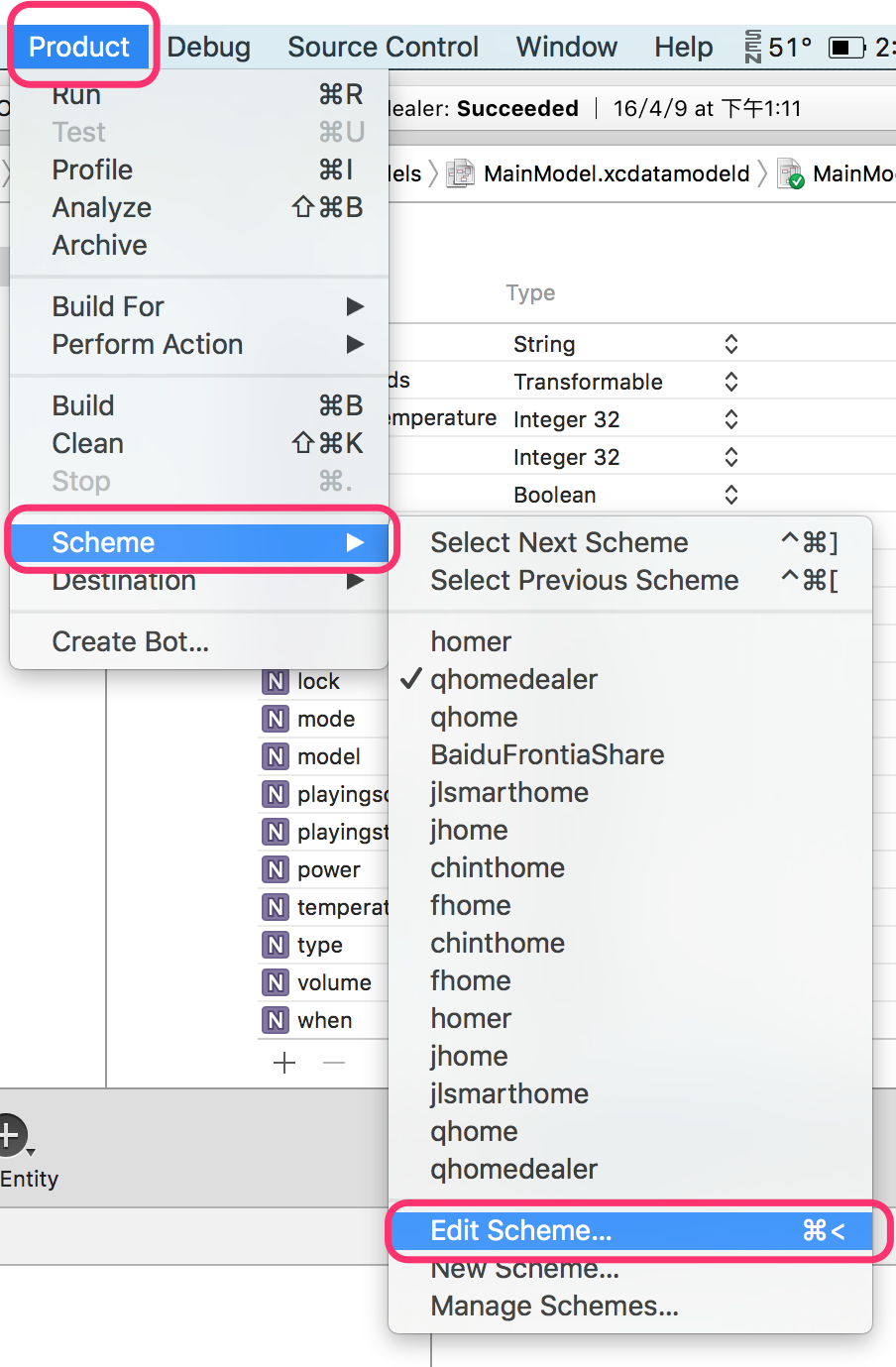
Then switch to the Arguments tab, add “- com.apple.CoreData.SQLDebug 3” under Arguments Passed On Launch, and run the app again. The SQL statements optimized by Core Data will then be displayed below.
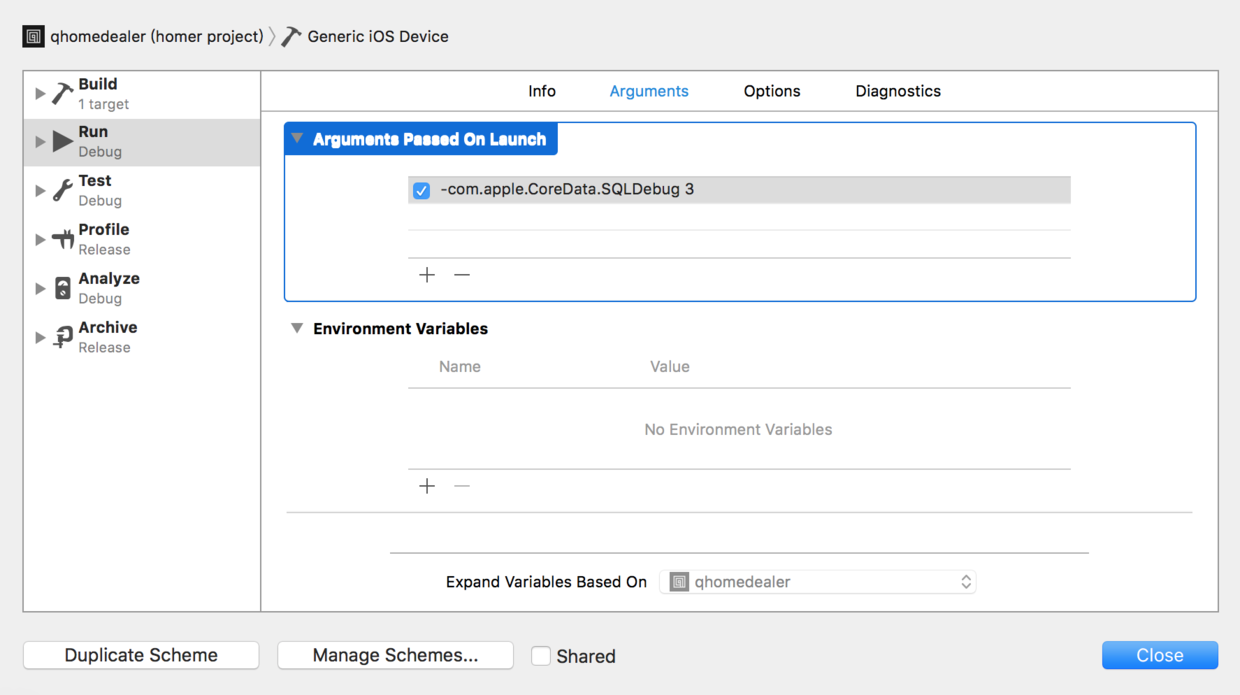
All right, the debugging information should now be displayed perfectly, and we can happily move on to the main content!
####I. Core Data’s Built-in Lightweight Data Migration Don’t underestimate this type of migration. When you create a new table, you must enable it; otherwise, the following error will occur:
**Failed to add store. Error: Error Domain=NSCocoaErrorDomain Code=134100 "(null)" UserInfo={metadata={**
**    NSPersistenceFrameworkVersion = 641;**
**    NSStoreModelVersionHashes =     {**
**        Item = <64288772 72e62096 a8a4914f 83db23c9 13718f81 4417e297 293d0267 79b04acb>;**
**        Measurement = <35717f0e 32cae0d4 57325758 58ed0d11 c16563f2 567dac35 de63d5d8 47849cf7>;**
**    };**
**    NSStoreModelVersionHashesVersion = 3;**
**    NSStoreModelVersionIdentifiers =     (**
**        ""**
**    );**
**    NSStoreType = SQLite;**
**    NSStoreUUID = "9A16746E-0C61-421B-B936-412F0C904FDF";**
**    "_NSAutoVacuumLevel" = 2;**
**}, reason=The model used to open the store is incompatible with the one used to create the store}**
The cause of the error is pretty clear: reason=The model used to open the store is incompatible with the one used to create the store. This happens because I created a new table but didn’t enable the lightweight migration option. Some people may ask: “I’ve added new tables before and never seen this error.” That’s because the third-party framework you’re using has already configured that option for you. (Audience aside: Who still writes Core Data from scratch these days? Everyone uses a third-party framework, right?) So here I’ll explain the underlying principle. If you’re writing Core Data from scratch, this error should occur. The fix is, of course, to add the necessary code and use Core Data’s lightweight migration to prevent crashes caused by failing to find the persistent store.
NSDictionary *options =
    @{
      NSSQLitePragmasOption: @{@"journal_mode": @"DELETE"},
      NSMigratePersistentStoresAutomaticallyOption :@YES,
      NSInferMappingModelAutomaticallyOption:@YES
    };

    NSError *error = nil;
    _store = [_coordinator addPersistentStoreWithType:NSSQLiteStoreType
                                        configuration:nil
                                                  URL:[self storeURL]
                                              options:options error:&error];
Here’s what the two newly added parameters mean:
NSMigratePersistentStoresAutomaticallyOption = YES means Core Data will try to migrate any incompatible persistent stores from an older model version to the new model. In this example, Core Data can recognize that this is a new table, so it will create the storage for the new table, and the error mentioned above will no longer occur.
NSInferMappingModelAutomaticallyOption = YES means Core Data will try to infer the MappingModel in the way it considers most reasonable, mapping a property from an entity in the source model to a property in an entity in the destination model.
Next, let’s look at how the MagicRecord source code is written, which is why you can perform certain operations without running into the crash issue I mentioned above.
+ (NSDictionary *) MR_autoMigrationOptions;
{
    // Adding the journalling mode recommended by apple
    NSMutableDictionary *sqliteOptions = [NSMutableDictionary dictionary];
    [sqliteOptions setObject:@"WAL" forKey:@"journal_mode"];

    NSDictionary *options = [NSDictionary dictionaryWithObjectsAndKeys:
                             [NSNumber numberWithBool:YES], NSMigratePersistentStoresAutomaticallyOption,
                             [NSNumber numberWithBool:YES], NSInferMappingModelAutomaticallyOption,
                             sqliteOptions, NSSQLitePragmasOption,
                             nil];
    return options;
}
The section above is the lightweight Core Data migration protection that MagicRecord adds for you in its source code, so even if you do not specify those two parameters, it will not throw an error. (As an aside: MagicRecord enables WAL logging mode here by default.) If you comment out those two parameters here, or set their values to NO, then run it again and create a new table, you will see the error I mentioned above. You can try it yourself—after all, practice is the best way to learn.
As long as those two parameters are enabled, Core Data will perform its own lightweight migration. Of course, this approach is not reliable when migrating entity attributes. I previously thought Core Data would definitely be able to infer the migration, but after an update it still crashed immediately with an error. This may have been because the table structure was too complex and exceeded the scope of what its simple inference mechanism can handle. So my recommendation is: when performing a complex migration from one entity attribute to another, do not trust this approach too much. It is best to create the Mapping yourself. Of course, when you are creating a new table, these two parameters must be added!!!
####II. Manually Creating a Mapping File in Core Data for Migration
This approach is more fine-grained than the previous one. The Mapping file specifies which attribute of which entity is migrated to which attribute of which entity. This is more reliable than handing everything over to Core Data to infer on its own. This method explicitly defines the mapping!
First, let’s look at what kind of error occurs during a complex migration if you do not add this Mapping file.
**Failed to add store. Error: Error Domain=NSCocoaErrorDomain Code=134140 "(null)" UserInfo={destinationModel=(<NSManagedObjectModel: 0x7f82d4935280>) isEditable 0, entities {**
**    Amount = "(<NSEntityDescription: 0x7f82d4931960>) name Amount, managedObjectClassName NSManagedObject, renamingIdentifier Amount, isAbstract 0, superentity name (null), properties {\n    qwe = \"(<NSAttributeDescription: 0x7f82d4930f40>), name qwe, isOptional 1, isTransient 0, entity Amount, renamingIdentifier qwe, validation predicates (\\n), warnings (\\n), versionHashModifier (null)\\n userInfo {\\n}, attributeType 700 , attributeValueClassName NSString, defaultValue (null)\";\n}, subentities {\n}, userInfo {\n}, versionHashModifier (null), uniquenessConstraints (\n)";**
**    Item = "(<NSEntityDescription: 0x7f82d4931a10>) name Item, managedObjectClassName Item, renamingIdentifier Item, isAbstract 0, superentity name (null), properties {\n    collected = \"(<NSAttributeDescription: 0x7f82d4930fd0>), name collected, isOptional 1, isTransient 0, entity Item, renamingIdentifier collected, validation predicates (\\n), warnings (\\n), versionHashModifier (null)\\n userInfo {\\n}, attributeType 800 , attributeValueClassName NSNumber, defaultValue 0\";\n    listed = \"(<NSAttributeDescription: 0x7f82d4931060>), name listed, isOptional 1, isTransient 0, entity Item, renamingIdentifier listed, validation predicates (\\n), warnings (\\n), versionHashModifier (null)\\n userInfo {\\n}, attributeType 800 , attributeValueClassName NSNumber, defaultValue 1\";\n    name = \"(<NSAttributeDescription: 0x7f82d49310f0>), name name, isOptional 1, isTransient 0, entity Item, renamingIdentifier name, validation predicates (\\n), warnings (\\n), versionHashModifier (null)\\n userInfo {\\n}, attributeType 700 , attributeValueClassName NSString, defaultValue New Item\";\n    photoData = \"(<NSAttributeDescription: 0x7f82d4931180>), name photoData, isOptional 1, isTransient 0, entity Item, renamingIdentifier photoData, validation predicates (\\n), warnings (\\n), versionHashModifier (null)\\n userInfo {\\n}, attributeType 1000 , attributeValueClassName NSData, defaultValue (null)\";\n    quantity = \"(<NSAttributeDescription: 0x7f82d4931210>), name quantity, isOptional 1, isTransient 0, entity Item, renamingIdentifier quantity, validation predicates (\\n), warnings (\\n), versionHashModifier (null)\\n userInfo {\\n}, attributeType 600 , attributeValueClassName NSNumber, defaultValue 1\";\n}, subentities {\n}, userInfo {\n}, versionHashModifier (null), uniquenessConstraints (\n)";**
**}, fetch request templates {**
**    Test = "<NSFetchRequest: 0x7f82d49316c0> (entity: Item; predicate: (name CONTAINS \"e\"); sortDescriptors: ((null)); type: NSManagedObjectResultType; )";**
**}, sourceModel=(<NSManagedObjectModel: 0x7f82d488e930>) isEditable 1, entities {**
**    Amount = "(<NSEntityDescription: 0x7f82d488f880>) name Amount, managedObjectClassName NSManagedObject, renamingIdentifier Amount, isAbstract 0, superentity name (null), properties {\n    abc = \"(<NSAttributeDescription: 0x7f82d488f9d0>), name abc, isOptional 1, isTransient 0, entity Amount, renamingIdentifier abc, validation predicates (\\n), warnings (\\n), versionHashModifier (null)\\n userInfo {\\n}, attributeType 700 , attributeValueClassName NSString, defaultValue (null)\";\n}, subentities {\n}, userInfo {\n}, versionHashModifier (null), uniquenessConstraints (\n)";**
**    Item = "(<NSEntityDescription: 0x7f82d488fbe0>) name Item, managedObjectClassName NSManagedObject, renamingIdentifier Item, isAbstract 0, superentity name (null), properties {\n    collected = \"(<NSAttributeDescription: 0x7f82d48901c0>), name collected, isOptional 1, isTransient 0, entity Item, renamingIdentifier collected, validation predicates (\\n), warnings (\\n), versionHashModifier (null)\\n userInfo {\\n}, attributeType 800 , attributeValueClassName NSNumber, defaultValue 0\";\n    listed = \"(<NSAttributeDescription: 0x7f82d488fd20>), name listed, isOptional 1, isTransient 0, entity Item, renamingIdentifier listed, validation predicates (\\n), warnings (\\n), versionHashModifier (null)\\n userInfo {\\n}, attributeType 800 , attributeValueClassName NSNumber, defaultValue 1\";\n    name = \"(<NSAttributeDescription: 0x7f82d488fdb0>), name name, isOptional 1, isTransient 0, entity Item, renamingIdentifier name, validation predicates (\\n), warnings (\\n), versionHashModifier (null)\\n userInfo {\\n}, attributeType 700 , attributeValueClassName NSString, defaultValue New Item\";\n    photoData = \"(<NSAttributeDescription: 0x7f82d488fad0>), name photoData, isOptional 1, isTransient 0, entity Item, renamingIdentifier photoData, validation predicates (\\n), warnings (\\n), versionHashModifier (null)\\n userInfo {\\n}, attributeType 1000 , attributeValueClassName NSData, defaultValue (null)\";\n    quantity = \"(<NSAttributeDescription: 0x7f82d488fc90>), name quantity, isOptional 1, isTransient 0, entity Item, renamingIdentifier quantity, validation predicates (\\n), warnings (\\n), versionHashModifier (null)\\n userInfo {\\n}, attributeType 600 , attributeValueClassName NSNumber, defaultValue 1\";\n}, subentities {\n}, userInfo {\n}, versionHashModifier (null), uniquenessConstraints (\n)";**
**}, fetch request templates {**
**    Test = "<NSFetchRequest: 0x7f82d488fa60> (entity: Item; predicate: (name CONTAINS \"e\"); sortDescriptors: ((null)); type: NSManagedObjectResultType; )";**
**}, reason=Can't find mapping model for migration}**
Looking directly at the reason in the last line of the error, Can't find mapping model for migration, it clearly states the cause. Next, we’ll create a Mapping Model file.
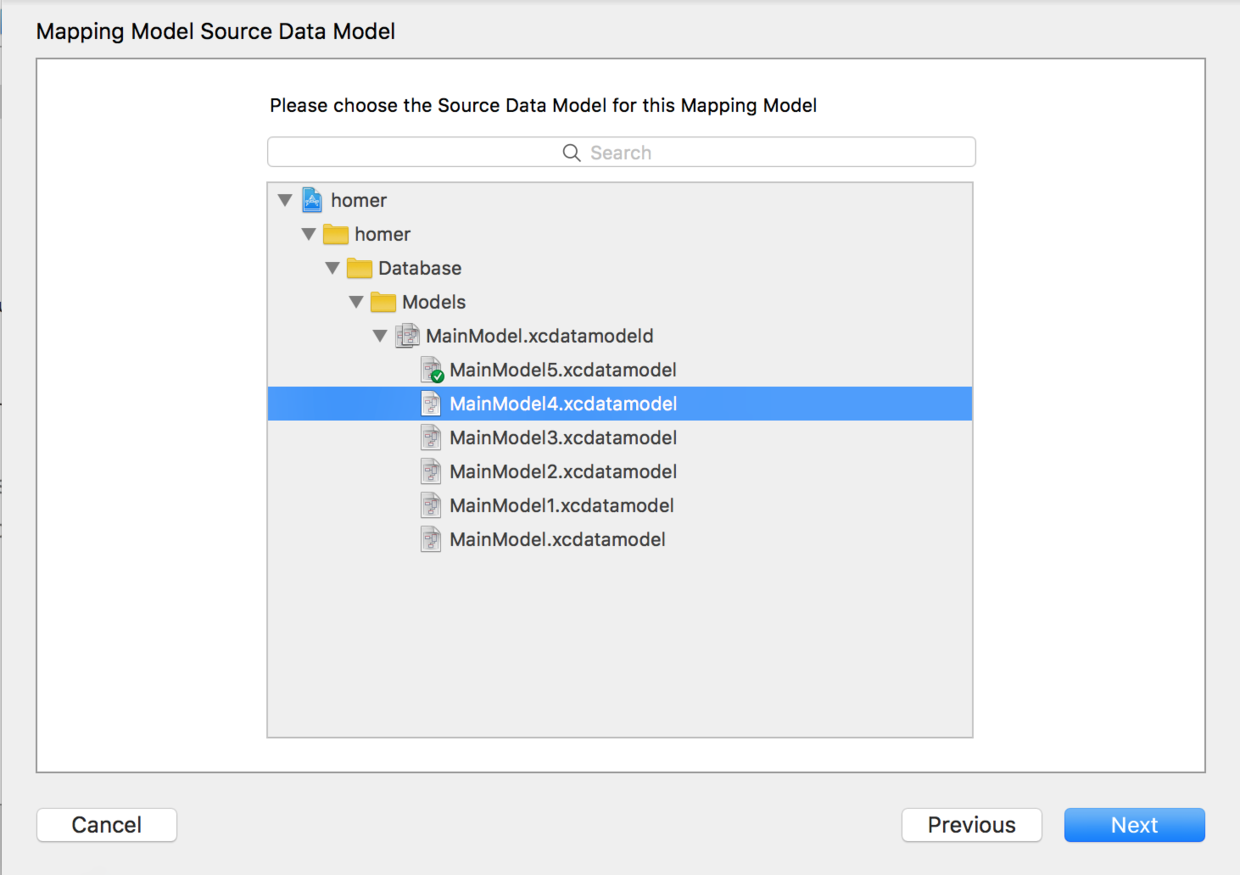
In the same folder as your xcdatamodeld, choose “New File” -> “Core Data” -> “Mapping Model”

Select the source database that needs to be mapped.
Then select the target database.
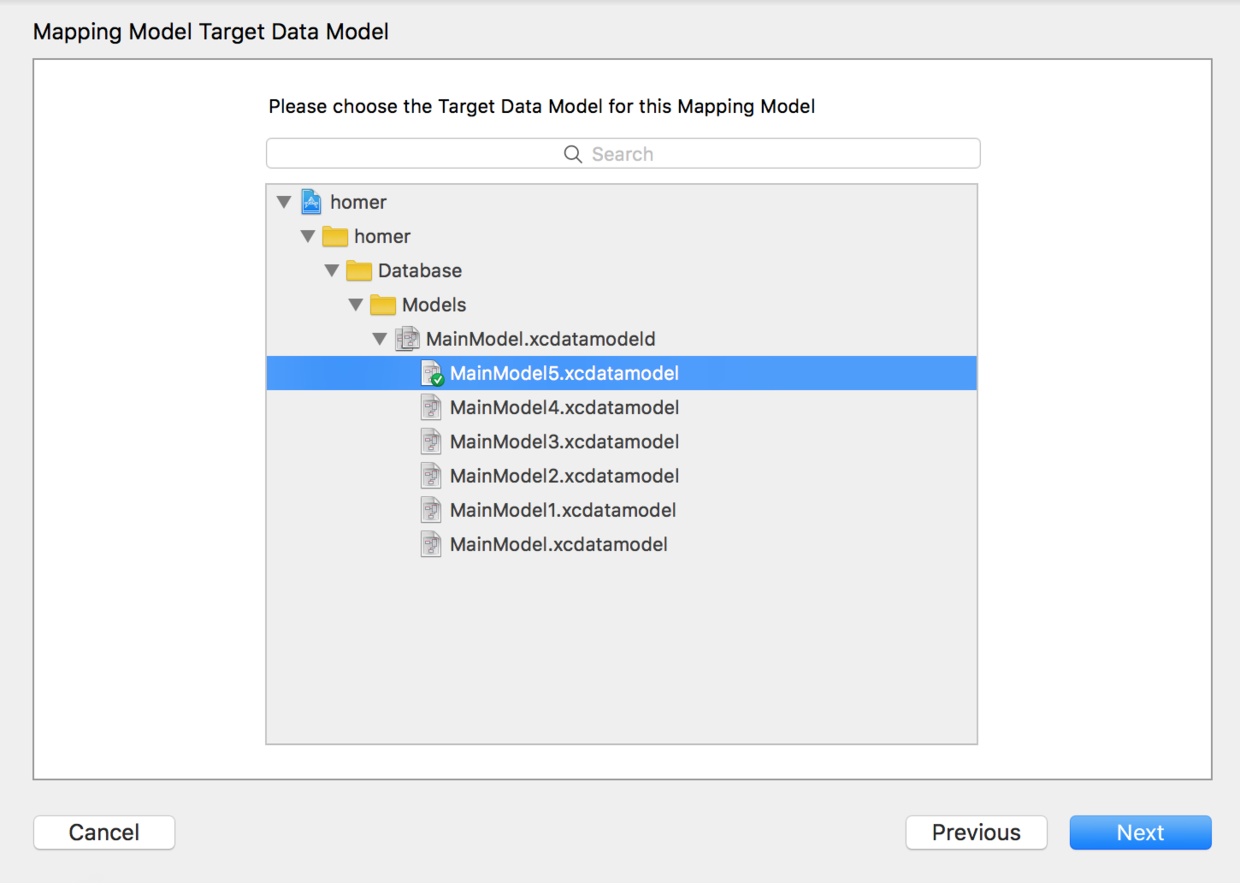
Next, name the Mapping Model file.
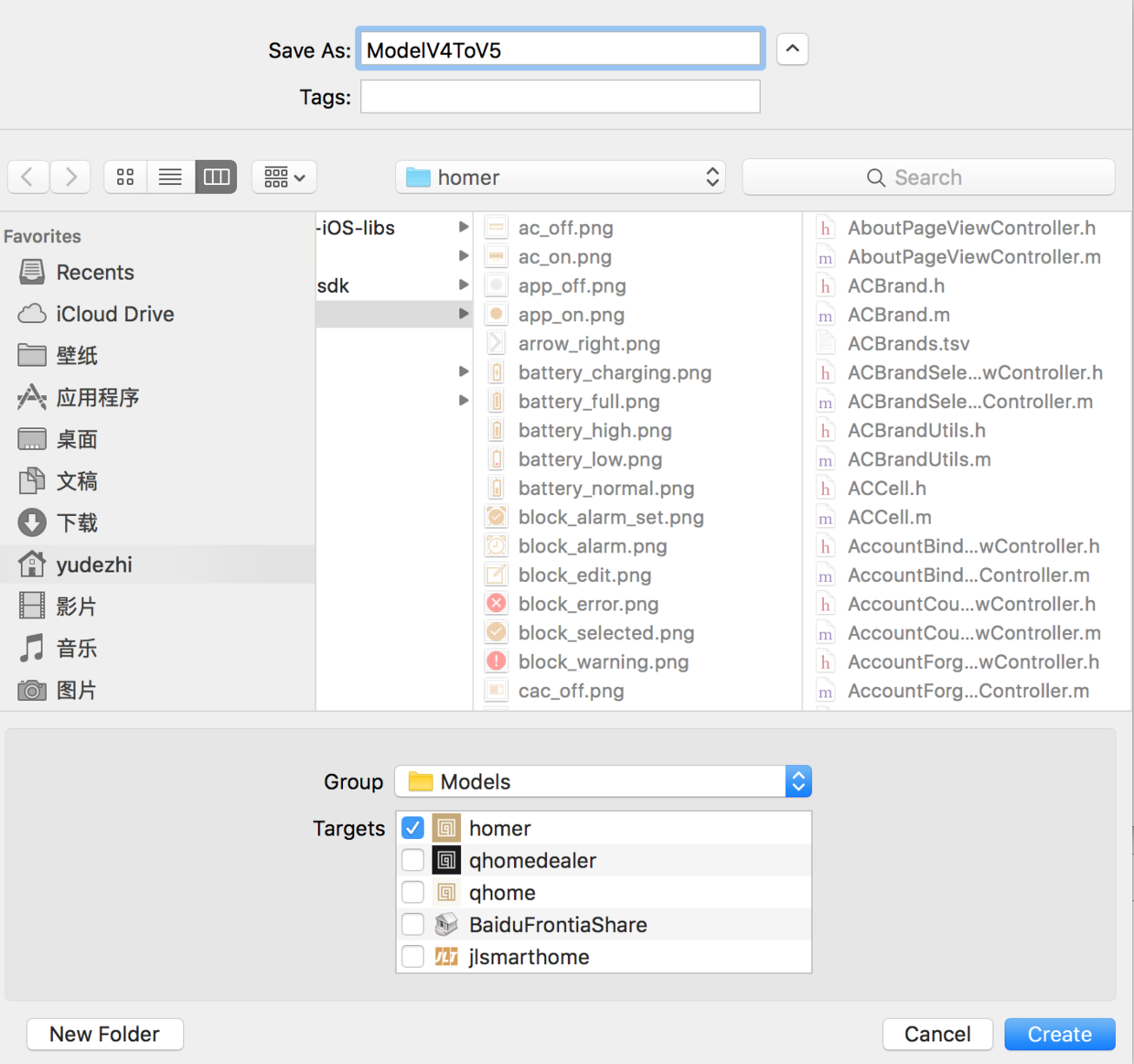
One thing to note here: the name should ideally make it obvious at a glance which database version is being upgraded from and to. Here I named it ModelV4ToV5, so it’s clear immediately that this is an upgrade from V4 to V5.
Let’s also talk about the importance of the Mapping file. First, it’s best to add a Mapping file between every pair of database versions. This ensures that when upgrading from an older database version, every intermediate version can be migrated correctly, and users won’t hit a crash immediately after upgrading.
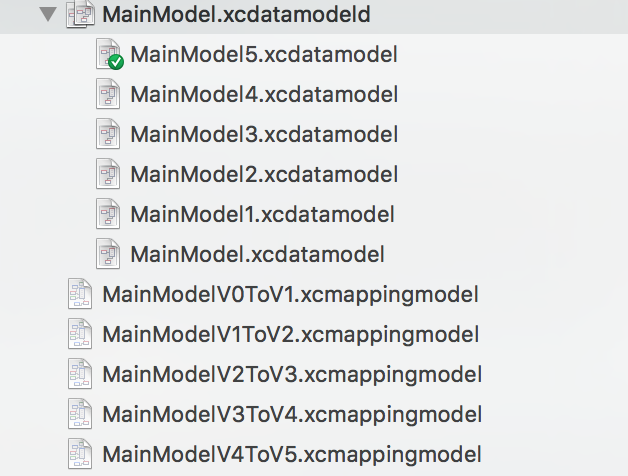
For example, in the image above, every pair of database versions has a corresponding Mapping file: V0ToV1, V1ToV2, V2ToV3, V3ToV4, V4ToV5. Every Mapping is required.
Imagine a user is still on the old V3 version. Because of App Store update rules, every update goes directly to the latest version, so after updating the user will go straight to V5. If either of the intermediate mappings, V3ToV4 or V4ToV5, is missing, then users on V3 won’t be able to upgrade to V5 and the app will crash. This shows why it’s important to add a Mapping file between every version. With this in place, users on any older version can upgrade to the latest version at any time through the Mapping files, without crashes!
Next, let’s look at what’s inside a Mapping file.
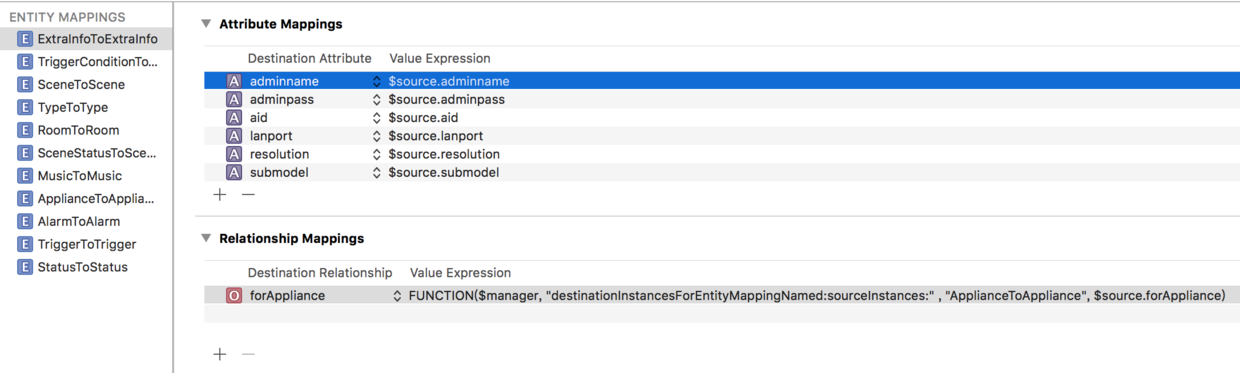
When opened, a Mapping file shows the mapping from the Source entity attributes to the Target entity attributes. The upper section maps attributes, and the lower section maps relationships. $source represents the source entity.
At this point, we can clearly distinguish the similarities and differences between Core Data lightweight migration and manually creating a Mapping for migration. Here’s a brief summary: 1.Core Data lightweight migration is suitable for simple migrations that the system can infer by itself, such as adding new tables, adding new entities, and adding new attributes to existing entities. 2.Manually creating a Mapping is suitable for more complex data migrations.
Here’s an example. Suppose I originally had a very abstract table called Object, used to store some properties of things. Assume it has name, width, and height. Then one day I suddenly have a new requirement: add a few fields to the Object table, such as colour and weight. Since these are all simple additions and do not involve moving data, lightweight migration is sufficient.
But then the program suddenly has another new requirement: add two tables, one called Human and one called Animal, and make the originally abstract Object table more concrete. At this point, the people in Object need to be extracted and placed into the newly created Human table, and the animals need to be extracted and placed into the newly created Animal table. Since both new tables have a name attribute, if lightweight migration is used at this point, the system may not be able to infer which name values should go into the Human table and which should go into the Animal table. Furthermore, some attributes exist in the Human table but not in the Animal table. In this case, you must manually add a Mapping Model file and explicitly specify which attributes from the source entity should be mapped to which attributes on the target entity. This more fine-grained migration approach can only be done by manually adding a Mapping Model—after all, iOS doesn’t know your requirements or intentions.
####III.Implementing Data Migration Through Code Code-based migration is mainly used when, during the data migration process, you also want to do something else—for example, clean up stale data, display migration progress in real time, and so on. In those cases, this is where you implement it.
First, we need to check whether the persistent store exists. Then we compare the model metadata in the store and check whether it is compatible. If it is not compatible, then we need to perform data migration.
- (BOOL)isMigrationNecessaryForStore:(NSURL*)storeUrl
{
    NSLog(@"Running %@ '%@'", self.class, NSStringFromSelector(_cmd));

    if (![[NSFileManager defaultManager] fileExistsAtPath:[self storeURL].path])
    {
        NSLog(@"SKIPPED MIGRATION: Source database missing.");
        return NO;
    }

    NSError *error = nil;
    NSDictionary *sourceMetadata =
    [NSPersistentStoreCoordinator metadataForPersistentStoreOfType:NSSQLiteStoreType
                                                               URL:storeUrl error:&error];
    NSManagedObjectModel *destinationModel = _coordinator.managedObjectModel;

    if ([destinationModel isConfiguration:nil compatibleWithStoreMetadata:sourceMetadata])
    {
        NSLog(@"SKIPPED MIGRATION: Source is already compatible");
        return NO;
    }

    return YES;
}
When the function above returns YES, we need to merge; next comes the following function.
- (BOOL)migrateStore:(NSURL*)sourceStore {

    NSLog(@"Running %@ '%@'", self.class, NSStringFromSelector(_cmd));
    BOOL success = NO;
    NSError *error = nil;

    // STEP 1 - Collect Source entities, Destination entities, and Mapping Model file
    NSDictionary *sourceMetadata = [NSPersistentStoreCoordinator
                                    metadataForPersistentStoreOfType:NSSQLiteStoreType
                                    URL:sourceStore
                                    error:&error];

    NSManagedObjectModel *sourceModel =
    [NSManagedObjectModel mergedModelFromBundles:nil
                                forStoreMetadata:sourceMetadata];

    NSManagedObjectModel *destinModel = _model;

    NSMappingModel *mappingModel =
    [NSMappingModel mappingModelFromBundles:nil
                             forSourceModel:sourceModel
                           destinationModel:destinModel];

    // STEP 2 - Start migration, provided the mapping model is not empty or exists
    if (mappingModel) {
        NSError *error = nil;
        NSMigrationManager *migrationManager =
        [[NSMigrationManager alloc] initWithSourceModel:sourceModel
                                       destinationModel:destinModel];
        [migrationManager addObserver:self
                           forKeyPath:@"migrationProgress"
                              options:NSKeyValueObservingOptionNew
                              context:NULL];

        NSURL *destinStore =
        [[self applicationStoresDirectory]
         URLByAppendingPathComponent:@"Temp.sqlite"];

        success =
        [migrationManager migrateStoreFromURL:sourceStore
                                         type:NSSQLiteStoreType options:nil
                             withMappingModel:mappingModel
                             toDestinationURL:destinStore
                              destinationType:NSSQLiteStoreType
                           destinationOptions:nil
                                        error:&error];
        if (success)
        {
            // STEP 3 - Replace the old store with the new migrated store
            if ([self replaceStore:sourceStore withStore:destinStore])
            {
                NSLog(@"SUCCESSFULLY MIGRATED %@ to the Current Model",
                          sourceStore.path);
                [migrationManager removeObserver:self
                                      forKeyPath:@"migrationProgress"];
            }
        }
        else
        {
            NSLog(@"FAILED MIGRATION: %@",error);
        }
    }
    else
    {
        NSLog(@"FAILED MIGRATION: Mapping Model is null");
    }

    return YES; // migration is complete
}
In the function above, if the migration progress changes, the observer will notify the user of the progress via observeValueForKeyPath. You can listen for that progress here, and if it has not completed, prevent the user from performing certain operations.
- (void)observeValueForKeyPath:(NSString *)keyPath
                      ofObject:(id)object
                        change:(NSDictionary *)change
                       context:(void *)context {

    if ([keyPath isEqualToString:@"migrationProgress"]) {

        dispatch_async(dispatch_get_main_queue(), ^{

            float progress =
            [[change objectForKey:NSKeyValueChangeNewKey] floatValue];

            int percentage = progress * 100;
            NSString *string =
            [NSString stringWithFormat:@"Migration Progress: %i%%",
             percentage];
            NSLog(@"%@",string);

        });
    }
}
Of course, this data merge/migration operation should be executed asynchronously on background threads to avoid freezing the UI. Add the following method so we can run it asynchronously.
- (void)performBackgroundManagedMigrationForStore:(NSURL*)storeURL
{
    NSLog(@"Running %@ '%@'", self.class, NSStringFromSelector(_cmd));

    dispatch_async(
                   dispatch_get_global_queue( DISPATCH_QUEUE_PRIORITY_BACKGROUND, 0), ^{
                       BOOL done = [self migrateStore:storeURL];
                       if(done) {
                           dispatch_async(dispatch_get_main_queue(), ^{
                               NSError *error = nil;
                               _store =
                               [_coordinator addPersistentStoreWithType:NSSQLiteStoreType
                                                          configuration:nil
                                                                    URL:[self storeURL]
                                                                options:nil
                                                                  error:&error];
                               if (!_store) {
                                   NSLog(@"Failed to add a migrated store. Error: %@",
                                         error);abort();}
                               else {
                                   NSLog(@"Successfully added a migrated store: %@",
                                         _store);}
                           });
                       }
                   });
}
At this point, the data migration is complete. However, there is still one issue: when should we perform the migration? After the update finishes? As soon as appDelegate is entered? Neither is ideal. The best approach is to complete the data migration before adding the current store to the coordinator!
- (void)loadStore
{
    NSLog(@"Running %@ '%@'", self.class, NSStringFromSelector(_cmd));

    if (_store) {return;} // Don't load again, because it has already been loaded

    BOOL useMigrationManager = NO;
    if (useMigrationManager &&
        [self isMigrationNecessaryForStore:[self storeURL]])
    {
        [self performBackgroundManagedMigrationForStore:[self storeURL]];
    }
    else
    {
        NSDictionary *options =
        @{
          NSMigratePersistentStoresAutomaticallyOption:@YES
          ,NSInferMappingModelAutomaticallyOption:@YES
          ,NSSQLitePragmasOption: @{@"journal_mode": @"DELETE"}
          };
        NSError *error = nil;
        _store = [_coordinator addPersistentStoreWithType:NSSQLiteStoreType
                                            configuration:nil
                                                      URL:[self storeURL]
                                                  options:options
                                                    error:&error];
        if (!_store)
        {
            NSLog(@"Failed to add store. Error: %@", error);abort();
        }
        else
        {
            NSLog(@"Successfully added store: %@", _store);
        }
    }

}
This completes the data migration, and it can also display the migration progress. During the migration, you can also customize certain operations, such as cleaning up junk data, deleting unused tables, and so on.
####End All right, that’s it. I’ve finished sharing several approaches to Core Data data migration. If there’s anything incorrect in the article, feel free to point it out so we can discuss and improve together!