All About Event Propagation in Weex
Preface
In the previous two articles, we discussed how Weex is initialized on the Native side and how Weex efficiently renders Native UI. There is still one missing piece on the Native side: how events generated by Native are passed back to JS. This article analyzes that part in detail.
Table of Contents
- Weex Event Types
- Weex Event Dispatch
1. Weex Event Types
In Weex, as of the latest version, events are divided into four types in total: common events, Appear events, Disappear events, and Page events.
Weex components include only the first three types of events: common events, Appear events, and Disappear events.
When a WXComponent adds an event, the following function is called:
- (void)_addEventOnMainThread:(NSString *)addEventName
{
    WX_ADD_EVENT(appear, addAppearEvent)
    WX_ADD_EVENT(disappear, addDisappearEvent)

    WX_ADD_EVENT(click, addClickEvent)
    WX_ADD_EVENT(swipe, addSwipeEvent)
    WX_ADD_EVENT(longpress, addLongPressEvent)

    WX_ADD_EVENT(panstart, addPanStartEvent)
    WX_ADD_EVENT(panmove, addPanMoveEvent)
    WX_ADD_EVENT(panend, addPanEndEvent)

    WX_ADD_EVENT(horizontalpan, addHorizontalPanEvent)
    WX_ADD_EVENT(verticalpan, addVerticalPanEvent)

    WX_ADD_EVENT(touchstart, addTouchStartEvent)
    WX_ADD_EVENT(touchmove, addTouchMoveEvent)
    WX_ADD_EVENT(touchend, addTouchEndEvent)
    WX_ADD_EVENT(touchcancel, addTouchCancelEvent)

    [self addEvent:addEventName];
}
WX_ADD_EVENT is a macro:
#define WX_ADD_EVENT(eventName, addSelector) \
if ([addEventName isEqualToString:@#eventName]) {\
    [self addSelector];\
}
That is, it checks whether the name of the event to be added, addEventName, matches the name of the default supported event, eventName. If they match, it executes the addSelector method.
Finally, an addEvent: method is executed, and each component can override this method. What this method does is mark the component’s state.
For example, the addEvent: method in the WXWebComponent component:
- (void)addEvent:(NSString *)eventName
{
    if ([eventName isEqualToString:@"pagestart"]) {
        _startLoadEvent = YES;
    }
    else if ([eventName isEqualToString:@"pagefinish"]) {
        _finishLoadEvent = YES;
    }
    else if ([eventName isEqualToString:@"error"]) {
        _failLoadEvent = YES;
    }
}
In this method, the state inside the Web component is also marked.
Next, let’s look at how these components detect event triggers.
1. Common Events
In the definition of WXComponent, the following event-related variables are defined:
@interface WXComponent ()
{
@package

    BOOL _appearEvent;
    BOOL _disappearEvent;
    UITapGestureRecognizer *_tapGesture;
    NSMutableArray *_swipeGestures;
    UILongPressGestureRecognizer *_longPressGesture;
    UIPanGestureRecognizer *_panGesture;

    BOOL _listenPanStart;
    BOOL _listenPanMove;
    BOOL _listenPanEnd;

    BOOL _listenHorizontalPan;
    BOOL _listenVerticalPan;

    WXTouchGestureRecognizer* _touchGesture;
}
The variables above include four gesture recognizers and one custom gesture recognizer. Therefore, Weex’s common events include these five types: click events, swipe events, long-press events, drag events, and generic touch events.
(1) Click Events
First, let’s look at click events:
WX_ADD_EVENT(click, addClickEvent)
The click event is added to the specified view through the macro above. This macro was mentioned earlier. Here, we expand the macro directly.
#define WX_ADD_EVENT(click, addClickEvent) \
if ([addEventName isEqualToString:@“click”]) {\
    [self addClickEvent];\
}
If the event passed to addEventName is @"click", then the addClickEvent method is executed.
- (void)addClickEvent
{
    if (!_tapGesture) {
        _tapGesture = [[UITapGestureRecognizer alloc] initWithTarget:self action:@selector(onClick:)];
        _tapGesture.delegate = self;
        [self.view addGestureRecognizer:_tapGesture];
    }
}
Add a tap gesture to the current view, triggering the onClick: method.
- (void)onClick:(__unused UITapGestureRecognizer *)recognizer
{
    NSMutableDictionary *position = [[NSMutableDictionary alloc] initWithCapacity:4];
    CGFloat scaleFactor = self.weexInstance.pixelScaleFactor;

    if (!CGRectEqualToRect(self.calculatedFrame, CGRectZero)) {
        CGRect frame = [self.view.superview convertRect:self.calculatedFrame toView:self.view.window];
        position[@"x"] = @(frame.origin.x/scaleFactor);
        position[@"y"] = @(frame.origin.y/scaleFactor);
        position[@"width"] = @(frame.size.width/scaleFactor);
        position[@"height"] = @(frame.size.height/scaleFactor);
    }

    [self fireEvent:@"click" params:@{@"position":position}];
}
Once the user taps the screen, a tap gesture is triggered, and the tap gesture executes the onClick: method mentioned above. In this method, Weex calculates the coordinates, width, and height of the view that was tapped.
At this point, we need to talk about how Weex calculates coordinates.
(1) Calculate the scale factor
In everyday iOS development, the unit developers use for layout calculations is pt.
iPhone 5 resolution: 320pt x 568pt
iPhone 6 resolution: 375pt x 667pt
iPhone 6 Plus resolution: 414pt x 736pt
Because each screen has a different PPI (ppi: Pixels Per Inch, i.e. the number of pixels per inch, or screen pixel density), the final resolutions differ.
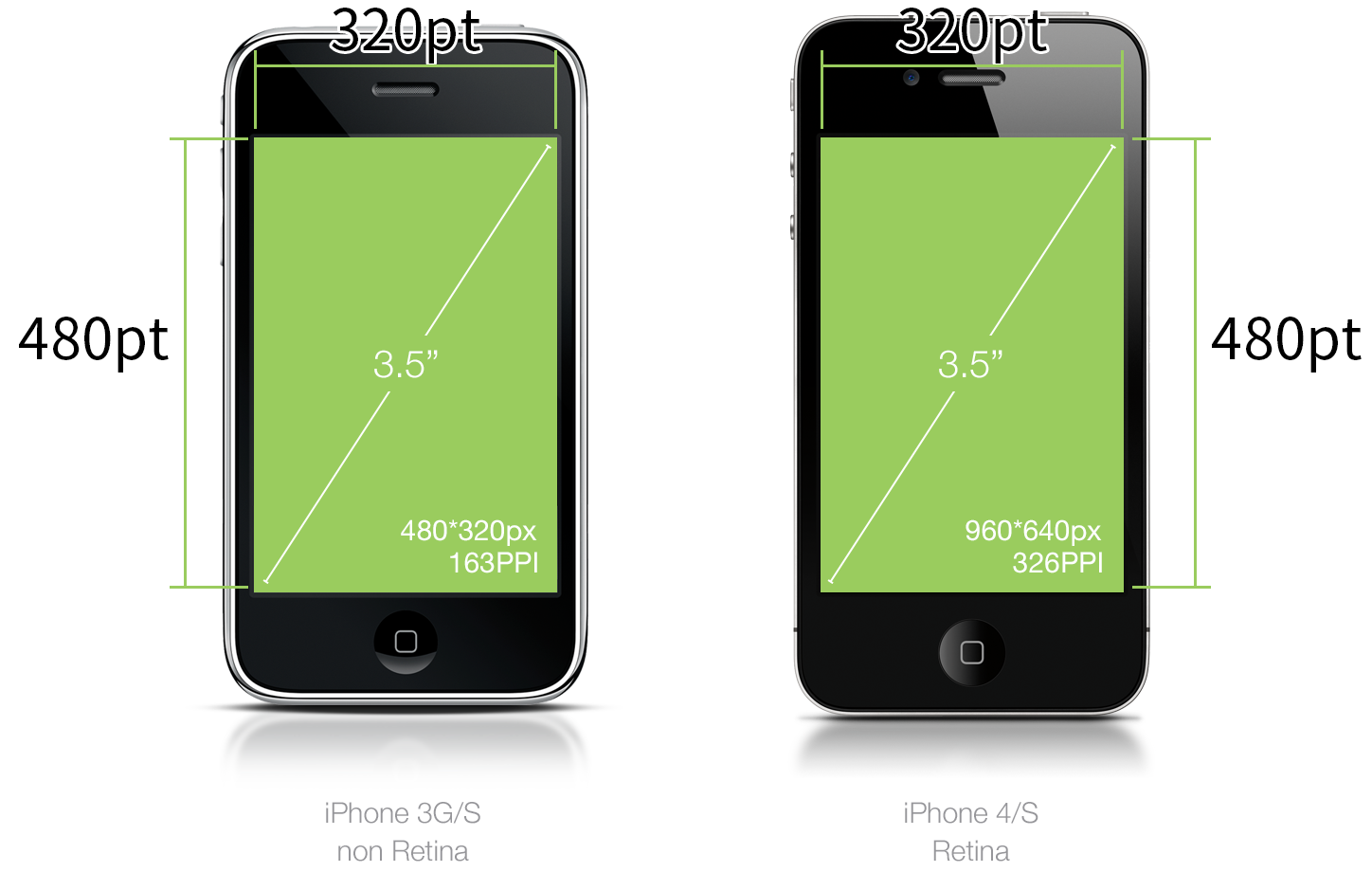
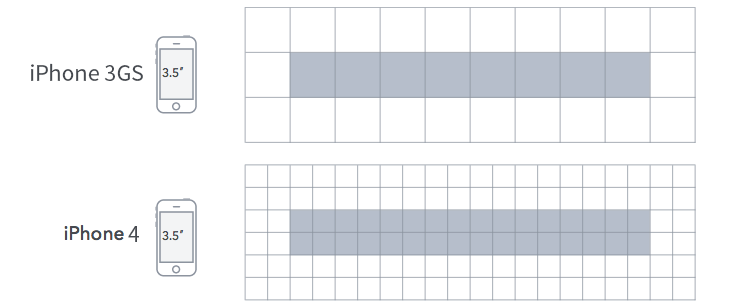
This is what we commonly refer to as @1x, @2x, and @3x. Currently, iPhones have only three PPI categories:
@1x, 163ppi (iPhone 3GS)@2x, 326ppi (iPhone 4, 4s, 5, 5s, 6, 6s, 7)@3x, 401ppi (iPhone 6+, 6s+, 7+)
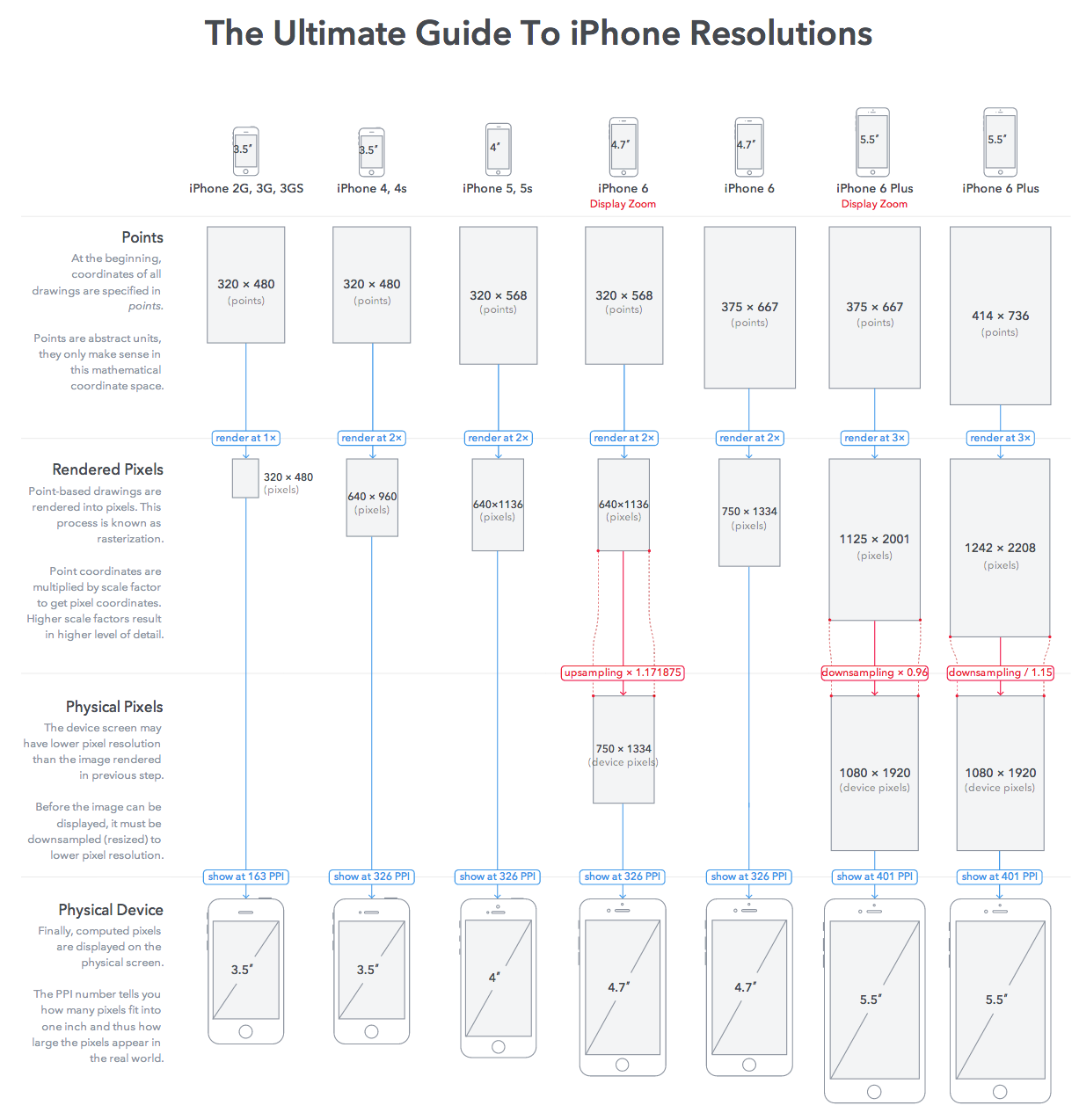
px means pixels; 1px represents one physical pixel on the screen.
iPhone 5 pixels: 640px x 1136px iPhone 6 pixels: 750px x 1334px iPhone 6 Plus pixels: 1242px x 2208px
In Weex development, however, px is currently used throughout, and Weex currently supports only pixel px values for length values; relative units (em, rem) are not yet supported.
So we need to convert between pt and px.
In the Weex world, a default screen size is defined to adapt to iOS, Android, and screens of various sizes.
// The default screen width which helps us to calculate the real size or scale in different devices.
static const CGFloat WXDefaultScreenWidth = 750.0;
In Weex, the default screen width is defined as 750; note that this refers to the width.
+ (CGFloat)defaultPixelScaleFactor
{
    static CGFloat defaultScaleFactor;
    static dispatch_once_t onceToken;
    dispatch_once(&onceToken, ^{
        defaultScaleFactor = [self portraitScreenSize].width / WXDefaultScreenWidth;
    });

    return defaultScaleFactor;
}
Here, a default scale factor is calculated. portraitScreenSize computes the screen size in portrait orientation. That is, if the orientation is landscape, the scale factor should be equal to WXScreenSize().height / WXDefaultScreenWidth; otherwise, it should be equal to WXScreenSize().width / WXDefaultScreenWidth.
This calculation is in pt.
The scale factor for iPhone 4, 4s, 5, 5s, 5c, and SE is 0.42666667.
The scale factor for iPhone 6, 6s, and 7 is 0.5.
The scale factor for iPhone 6+, 6s+, and 7+ is 0.552.
(2) Calculating the Scaled Size of a View
The scaled size of a view is mainly calculated in this method.
- (void)_calculateFrameWithSuperAbsolutePosition:(CGPoint)superAbsolutePosition
                           gatherDirtyComponents:(NSMutableSet<WXComponent *> *)dirtyComponents
{
    if (!_cssNode->layout.should_update) {
        return;
    }
    _cssNode->layout.should_update = false;
    _isLayoutDirty = NO;

    // Calculate the view's frame
    CGRect newFrame = CGRectMake(WXRoundPixelValue(_cssNode->layout.position[CSS_LEFT]),
                                 WXRoundPixelValue(_cssNode->layout.position[CSS_TOP]),
                                 WXRoundPixelValue(_cssNode->layout.dimensions[CSS_WIDTH]),
                                 WXRoundPixelValue(_cssNode->layout.dimensions[CSS_HEIGHT]));

    BOOL isFrameChanged = NO;
    // Compare newFrame and _calculatedFrame; initially _calculatedFrame is CGRectZero
    if (!CGRectEqualToRect(newFrame, _calculatedFrame)) {
        isFrameChanged = YES;
        _calculatedFrame = newFrame;
        [dirtyComponents addObject:self];
    }

    CGPoint newAbsolutePosition = [self computeNewAbsolutePosition:superAbsolutePosition];

    _cssNode->layout.dimensions[CSS_WIDTH] = CSS_UNDEFINED;
    _cssNode->layout.dimensions[CSS_HEIGHT] = CSS_UNDEFINED;
    _cssNode->layout.position[CSS_LEFT] = 0;
    _cssNode->layout.position[CSS_TOP] = 0;

    [self _frameDidCalculated:isFrameChanged];

    for (WXComponent *subcomponent in _subcomponents) {
        [subcomponent _calculateFrameWithSuperAbsolutePosition:newAbsolutePosition gatherDirtyComponents:dirtyComponents];
    }
}
newFrame is the computed, scaled Frame.
If you try to manually compare the px values set in Vue.js with the actual view coordinate values, you’ll find they are always slightly off. The discrepancy isn’t large, but there is always some error. Where does it come from? It’s in the WXRoundPixelValue function.
CGFloat WXRoundPixelValue(CGFloat value)
{
    CGFloat scale = WXScreenScale();
    return round(value * scale) / scale;
}
The WXRoundPixelValue function performs a rounding calculation, which causes some loss of precision here. As a result, the coordinates of the final Native component may be slightly off.
For example:
<style>

    .pic{
        width: 200px;
        height: 200px;
        margin-top: 100px;
        left: 200px;
        background-color: #a88859;
    }

</style>
Here is an imageComponent, positioned 100px from the top and 200px from the left, with a width of 200px and a height of 200px.
Assuming we are on an iPhone 7+ screen, the corresponding ppi should be scale = 3 (that is, @3x).
Using the Weex calculation method described above, the corresponding scaled px values are:
x = 200 * ( 414.0 / 750.0 ) = 110.400000
y = 100 * ( 414.0 / 750.0 ) = 55.200000
width = 200 * ( 414.0 / 750.0 ) = 110.400000
height = 200 * ( 414.0 / 750.0 ) = 110.400000
Then convert it to pt:
x = round ( 110.400000 * 3 ) / 3 = 110.333333
y = round ( 55.200000 * 3 ) / 3 = 55.333333
width = round ( 110.400000 * 3 ) / 3 = 110.333333
height = round ( 110.400000 * 3 ) / 3 = 110.333333
If you simply assume it is proportional scaling relative to 750, then here 110.333333 / (414.0 / 750.0) = 199.87922101. You’ll notice this value is still a few tenths away from 200. The precision loss comes from the round function.
So the current Frame of imageComponent inside its parent view is (110.333333, 55.333333, 110.333333, 110.333333).
Back to the onClick: method.
- (void)onClick:(__unused UITapGestureRecognizer *)recognizer
{
    NSMutableDictionary *position = [[NSMutableDictionary alloc] initWithCapacity:4];
    CGFloat scaleFactor = self.weexInstance.pixelScaleFactor;

    if (!CGRectEqualToRect(self.calculatedFrame, CGRectZero)) {
        CGRect frame = [self.view.superview convertRect:self.calculatedFrame toView:self.view.window];
        position[@"x"] = @(frame.origin.x/scaleFactor);
        position[@"y"] = @(frame.origin.y/scaleFactor);
        position[@"width"] = @(frame.size.width/scaleFactor);
        position[@"height"] = @(frame.size.height/scaleFactor);
    }

    [self fireEvent:@"click" params:@{@"position":position}];
}
If the view is tapped, the tap gesture’s handler will be triggered, and execution will enter the method described above.
This calculates the absolute coordinates of the tapped view relative to the window.
CGRect frame = [self.view.superview convertRect:self.calculatedFrame toView:self.view.window];
The sentence above performs a coordinate conversion. The coordinate system is converted to the left edge of the global window.
Still using the example above, if imageComponent has, after conversion, frame = (110.33333333333333, 119.33333333333334, 110.33333333333333, 110.33333333333331), then the distance on the y-axis has changed, because the 64-point height of the navigation bar plus the status bar has been added.
After calculating this absolute coordinate in the window, it still needs to be restored to a “size” relative to a width of 750.0. The reason “size” is in quotation marks is that there is precision loss here; some precision is lost at the round function.
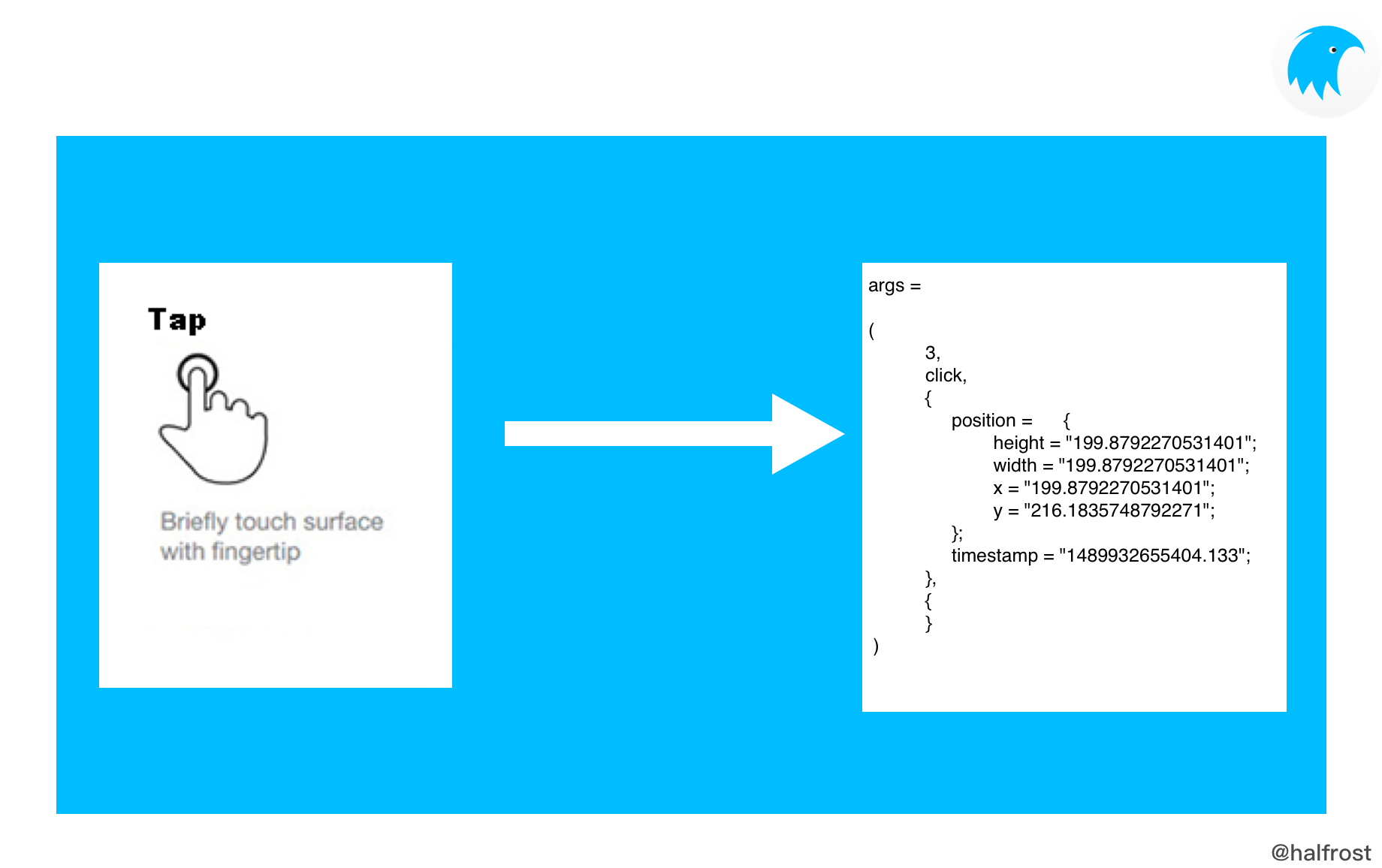
x = 110.33333333333333 / ( 414.0 / 750.0 ) = 199.8792270531401
y = 119.33333333333334 / ( 414.0 / 750.0 ) = 216.1835748792271
width = 110.33333333333333 / ( 414.0 / 750.0 ) = 199.8792270531401
height = 110.33333333333333 / ( 414.0 / 750.0 ) = 199.8792270531401
The above are the final coordinates obtained after the conversion following the click. These coordinates are passed to JS.
(2) Swipe Event
Next is the swipe event.
WX_ADD_EVENT(swipe, addSwipeEvent)
The expansion principle of this macro is the same as that of the click event above, so it will not be repeated here.
If the event passed into addEventName is @"swipe", then the addSwipeEvent method is executed.
- (void)addSwipeEvent
{
    if (_swipeGestures) {
        return;
    }

    _swipeGestures = [NSMutableArray arrayWithCapacity:4];


    // The code below is a bit “odd” because UISwipeGestureRecognizer's direction property is an optional bitmask, but each gesture recognizer can only handle gestures in one direction, so four UISwipeGestureRecognizer gesture recognizers need to be created below.

    SEL selector = @selector(onSwipe:);

    // Create an upSwipeRecognizer
    UISwipeGestureRecognizer *upSwipeRecognizer = [[UISwipeGestureRecognizer alloc] initWithTarget:self
                                                                                            action:selector];
    upSwipeRecognizer.direction = UISwipeGestureRecognizerDirectionUp;
    upSwipeRecognizer.delegate = self;
    [_swipeGestures addObject:upSwipeRecognizer];
    [self.view addGestureRecognizer:upSwipeRecognizer];


    // Create a downSwipeRecognizer
    UISwipeGestureRecognizer *downSwipeRecognizer = [[UISwipeGestureRecognizer alloc] initWithTarget:self
                                                                                              action:selector];
    downSwipeRecognizer.direction = UISwipeGestureRecognizerDirectionDown;
    downSwipeRecognizer.delegate = self;
    [_swipeGestures addObject:downSwipeRecognizer];
    [self.view addGestureRecognizer:downSwipeRecognizer];

    // Create a rightSwipeRecognizer
    UISwipeGestureRecognizer *rightSwipeRecognizer = [[UISwipeGestureRecognizer alloc] initWithTarget:self
                                                                                               action:selector];
    rightSwipeRecognizer.direction = UISwipeGestureRecognizerDirectionRight;
    rightSwipeRecognizer.delegate = self;
    [_swipeGestures addObject:rightSwipeRecognizer];
    [self.view addGestureRecognizer:rightSwipeRecognizer];

    // Create a leftSwipeRecognizer
    UISwipeGestureRecognizer *leftSwipeRecognizer = [[UISwipeGestureRecognizer alloc] initWithTarget:self
                                                                                              action:selector];
    leftSwipeRecognizer.direction = UISwipeGestureRecognizerDirectionLeft;
    leftSwipeRecognizer.delegate = self;
    [_swipeGestures addObject:leftSwipeRecognizer];
    [self.view addGestureRecognizer:leftSwipeRecognizer];
}
The code above creates gesture recognizers for all four directions. Because each gesture recognizer can handle swipes in only one direction, four UISwipeGestureRecognizer gesture recognizers need to be created.
Add a swipe gesture to the current view, with the triggered method being onSwipe:.
- (void)onSwipe:(UISwipeGestureRecognizer *)gesture
{
    UISwipeGestureRecognizerDirection direction = gesture.direction;

    NSString *directionString;
    switch(direction) {
        case UISwipeGestureRecognizerDirectionLeft:
            directionString = @"left";
            break;
        case UISwipeGestureRecognizerDirectionRight:
            directionString = @"right";
            break;
        case UISwipeGestureRecognizerDirectionUp:
            directionString = @"up";
            break;
        case UISwipeGestureRecognizerDirectionDown:
            directionString = @"down";
            break;
        default:
            directionString = @"unknown";
    }

    CGPoint screenLocation = [gesture locationInView:self.view.window];
    CGPoint pageLoacation = [gesture locationInView:self.weexInstance.rootView];
    NSDictionary *resultTouch = [self touchResultWithScreenLocation:screenLocation pageLocation:pageLoacation identifier:gesture.wx_identifier];
    [self fireEvent:@"swipe" params:@{@"direction":directionString, @"changedTouches":resultTouch ? @[resultTouch] : @[]}];
}
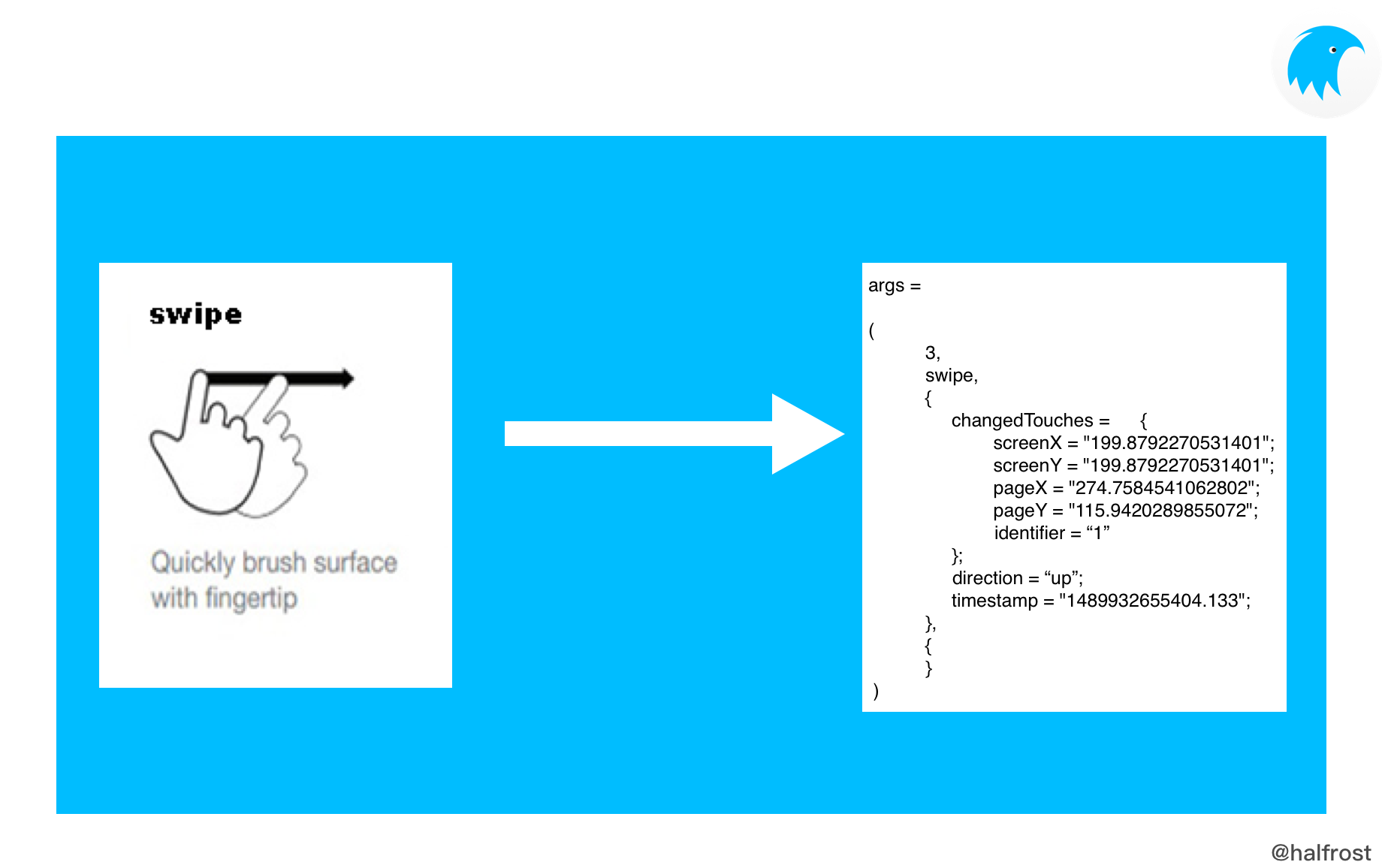
When the user swipes, a swipe gesture is triggered, and two coordinate values are obtained: one on the window and one on the rootView.
- (NSDictionary *)touchResultWithScreenLocation:(CGPoint)screenLocation pageLocation:(CGPoint)pageLocation identifier:(NSNumber *)identifier
{
    NSMutableDictionary *resultTouch = [[NSMutableDictionary alloc] initWithCapacity:5];
    CGFloat scaleFactor = self.weexInstance.pixelScaleFactor;
    resultTouch[@"screenX"] = @(screenLocation.x/scaleFactor);
    resultTouch[@"screenY"] = @(screenLocation.y/scaleFactor);
    resultTouch[@"pageX"] = @(pageLocation.x/scaleFactor);
    resultTouch[@"pageY"] = @(pageLocation.y/scaleFactor);
    resultTouch[@"identifier"] = identifier;

    return resultTouch;
}
The two coordinate points, screenLocation and pageLocation, are still converted back based on the scaling ratio to coordinates relative to a page width of 750. The X and Y values of screenLocation and the X and Y values of pageLocation are respectively encapsulated in the resultTouch dictionary.
@implementation UIGestureRecognizer (WXGesture)

- (NSNumber *)wx_identifier
{
    NSNumber *identifier = objc_getAssociatedObject(self, _cmd);
    if (!identifier) {
        static NSUInteger _gestureIdentifier;
        identifier = @(_gestureIdentifier++);
        self.wx_identifier = identifier;
    }

    return identifier;
}

- (void)setWx_identifier:(NSNumber *)wx_identifier
{
    objc_setAssociatedObject(self, @selector(wx_identifier), wx_identifier, OBJC_ASSOCIATION_RETAIN_NONATOMIC);
}

@end
Finally, resultTouch also contains an identifier parameter, which is a globally unique NSUInteger. wx\_identifier is associated with each gesture recognizer.
(3) Long-press Events
Next up is the swipe event.
WX_ADD_EVENT(longpress, addLongPressEvent)
This macro expands in the same way as the click event described above, so I won’t repeat it here.
If the event passed into addEventName is @"longpress", then the addLongPressEvent method is executed.
- (void)addLongPressEvent
{
    if (!_longPressGesture) {
        _longPressGesture = [[UILongPressGestureRecognizer alloc] initWithTarget:self action:@selector(onLongPress:)];
        _longPressGesture.delegate = self;
        [self.view addGestureRecognizer:_longPressGesture];
    }
}
Add a long-press gesture to the current view, with onLongPress: as the handler method.
- (void)onLongPress:(UILongPressGestureRecognizer *)gesture
{
    if (gesture.state == UIGestureRecognizerStateBegan) {
        CGPoint screenLocation = [gesture locationInView:self.view.window];
        CGPoint pageLoacation = [gesture locationInView:self.weexInstance.rootView];
        NSDictionary *resultTouch = [self touchResultWithScreenLocation:screenLocation pageLocation:pageLoacation identifier:gesture.wx_identifier];
        [self fireEvent:@"longpress" params:@{@"changedTouches":resultTouch ? @[resultTouch] : @[]}];
    } else if (gesture.state == UIGestureRecognizerStateEnded) {
        gesture.wx_identifier = nil;
    }
}
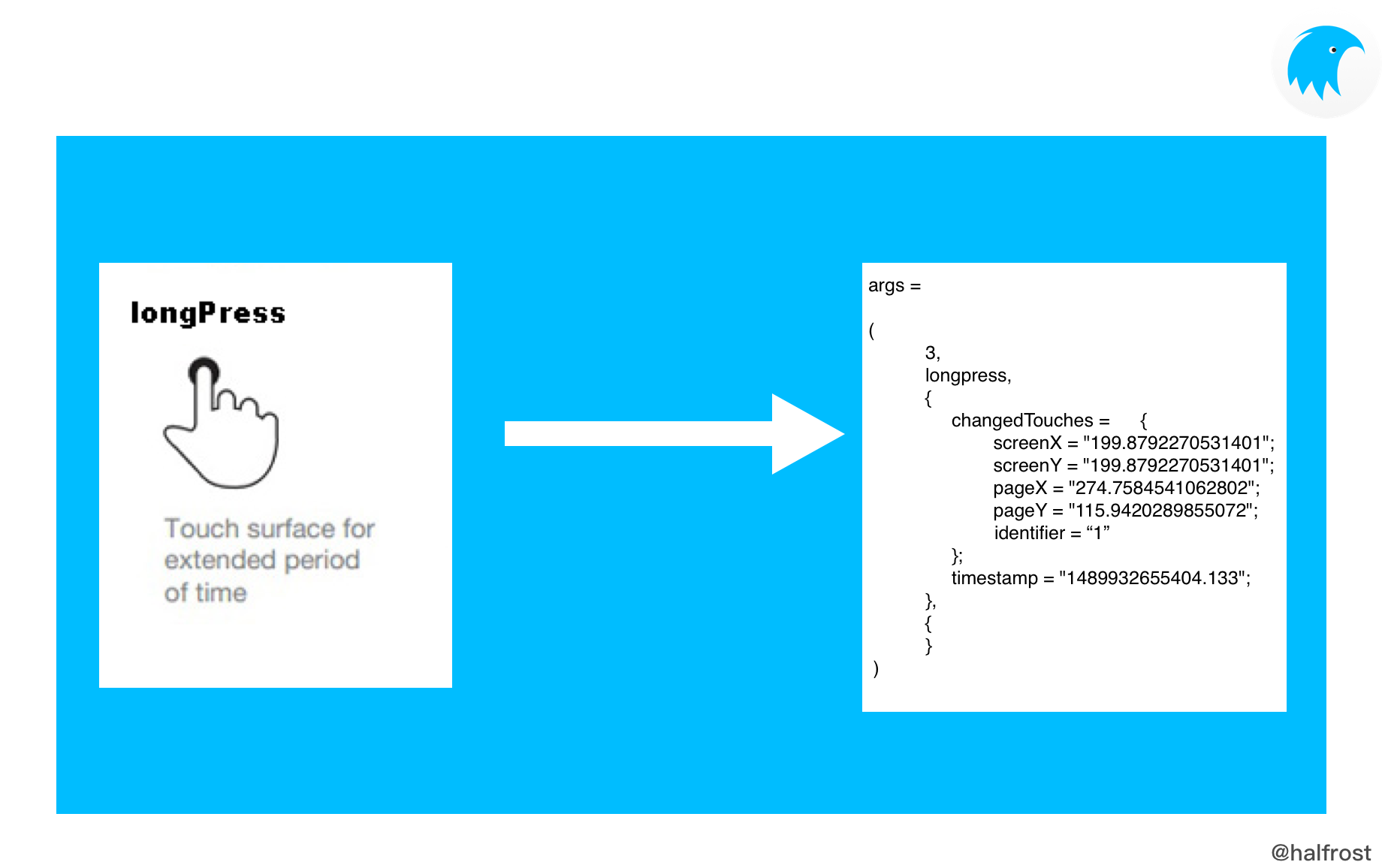
The parameters passed to JS for a long-press gesture are almost identical to the changedTouches parameters for a swipe. When the long-press gesture starts, two Points are passed to JS: screenLocation and pageLoacation, along with the gesture’s wx\_identifier. This part is basically the same as the swipe gesture, so I won’t go into more detail.
(4) Drag Events
In Weex, drag events include 5 events, corresponding to the 5 drag states: drag start, dragging, drag end, horizontal drag, and vertical drag.
    WX_ADD_EVENT(panstart, addPanStartEvent)
    WX_ADD_EVENT(panmove, addPanMoveEvent)
    WX_ADD_EVENT(panend, addPanEndEvent)
    WX_ADD_EVENT(horizontalpan, addHorizontalPanEvent)
    WX_ADD_EVENT(verticalpan, addVerticalPanEvent)
To distinguish the five states above, Weex also adds a BOOL variable for each state to determine the current state, as follows:
    BOOL _listenPanStart;
    BOOL _listenPanMove;
    BOOL _listenPanEnd;
    BOOL _listenHorizontalPan;
    BOOL _listenVerticalPan;
The five events added via the macro all essentially execute the addPanGesture method; the only difference is that each state event is paired with its corresponding BOOL variable.
- (void)addPanStartEvent
{
   // Drag started
    _listenPanStart = YES;
    [self addPanGesture];
}

- (void)addPanMoveEvent
{
   // Dragging
    _listenPanMove = YES;
    [self addPanGesture];
}

- (void)addPanEndEvent
{
   // Drag ended
    _listenPanEnd = YES;
    [self addPanGesture];
}

- (void)addHorizontalPanEvent
{
   // Horizontal drag
    _listenHorizontalPan = YES;
    [self addPanGesture];
}

- (void)addVerticalPanEvent
{
   // Vertical drag
    _listenVerticalPan = YES;
    [self addPanGesture];
}
Ultimately, they all call the addPanGesture method:
- (void)addPanGesture
{
    if (!_panGesture) {
        _panGesture = [[UIPanGestureRecognizer alloc] initWithTarget:self action:@selector(onPan:)];
        _panGesture.delegate = self;
        [self.view addGestureRecognizer:_panGesture];
    }
}
Add a pan gesture to the current view, with onPan: as the action method.
- (void)onPan:(UIPanGestureRecognizer *)gesture
{
    CGPoint screenLocation = [gesture locationInView:self.view.window];
    CGPoint pageLoacation = [gesture locationInView:self.weexInstance.rootView];
    NSString *eventName;
    NSString *state = @"";
    NSDictionary *resultTouch = [self touchResultWithScreenLocation:screenLocation pageLocation:pageLoacation identifier:gesture.wx_identifier];

    if (gesture.state == UIGestureRecognizerStateBegan) {
        if (_listenPanStart) {
            eventName = @"panstart";
        }
        state = @"start";
    } else if (gesture.state == UIGestureRecognizerStateEnded) {
        if (_listenPanEnd) {
            eventName = @"panend";
        }
        state = @"end";
        gesture.wx_identifier = nil;
    } else if (gesture.state == UIGestureRecognizerStateChanged) {
        if (_listenPanMove) {
             eventName = @"panmove";
        }
        state = @"move";
    }


    CGPoint translation = [_panGesture translationInView:self.view];

    if (_listenHorizontalPan && fabs(translation.y) <= fabs(translation.x)) {
        [self fireEvent:@"horizontalpan" params:@{@"state":state, @"changedTouches":resultTouch ? @[resultTouch] : @[]}];
    }

    if (_listenVerticalPan && fabs(translation.y) > fabs(translation.x)) {
        [self fireEvent:@"verticalpan" params:@{@"state":state, @"changedTouches":resultTouch ? @[resultTouch] : @[]}];
    }

    if (eventName) {
        [self fireEvent:eventName params:@{@"changedTouches":resultTouch ? @[resultTouch] : @[]}];
    }
}
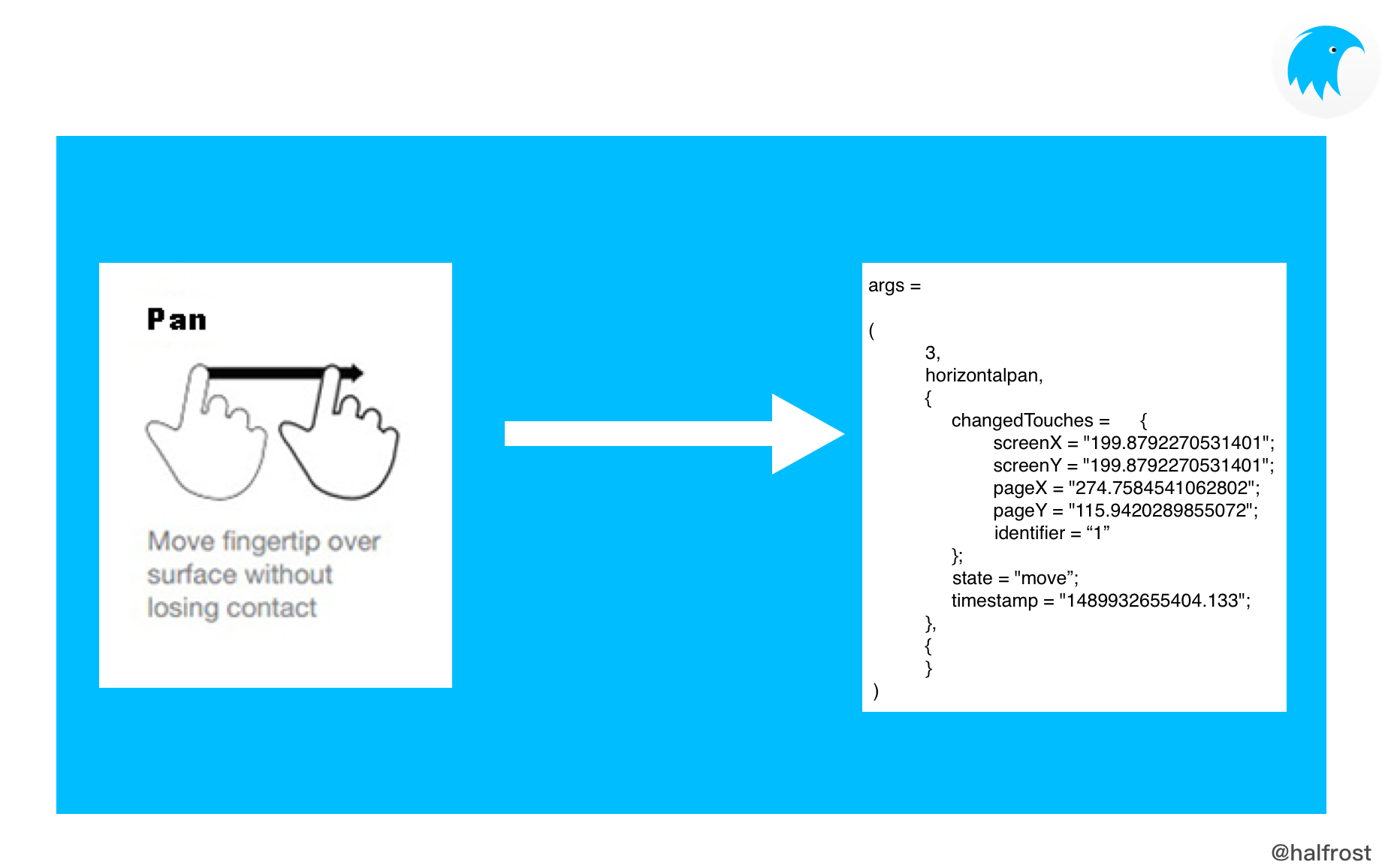
The resultTouch dictionary ultimately passed to JS for the drag event follows the same principle as the previous two gestures: two Points need to be passed in, screenLocation and pageLoacation, so we will not go into detail here.
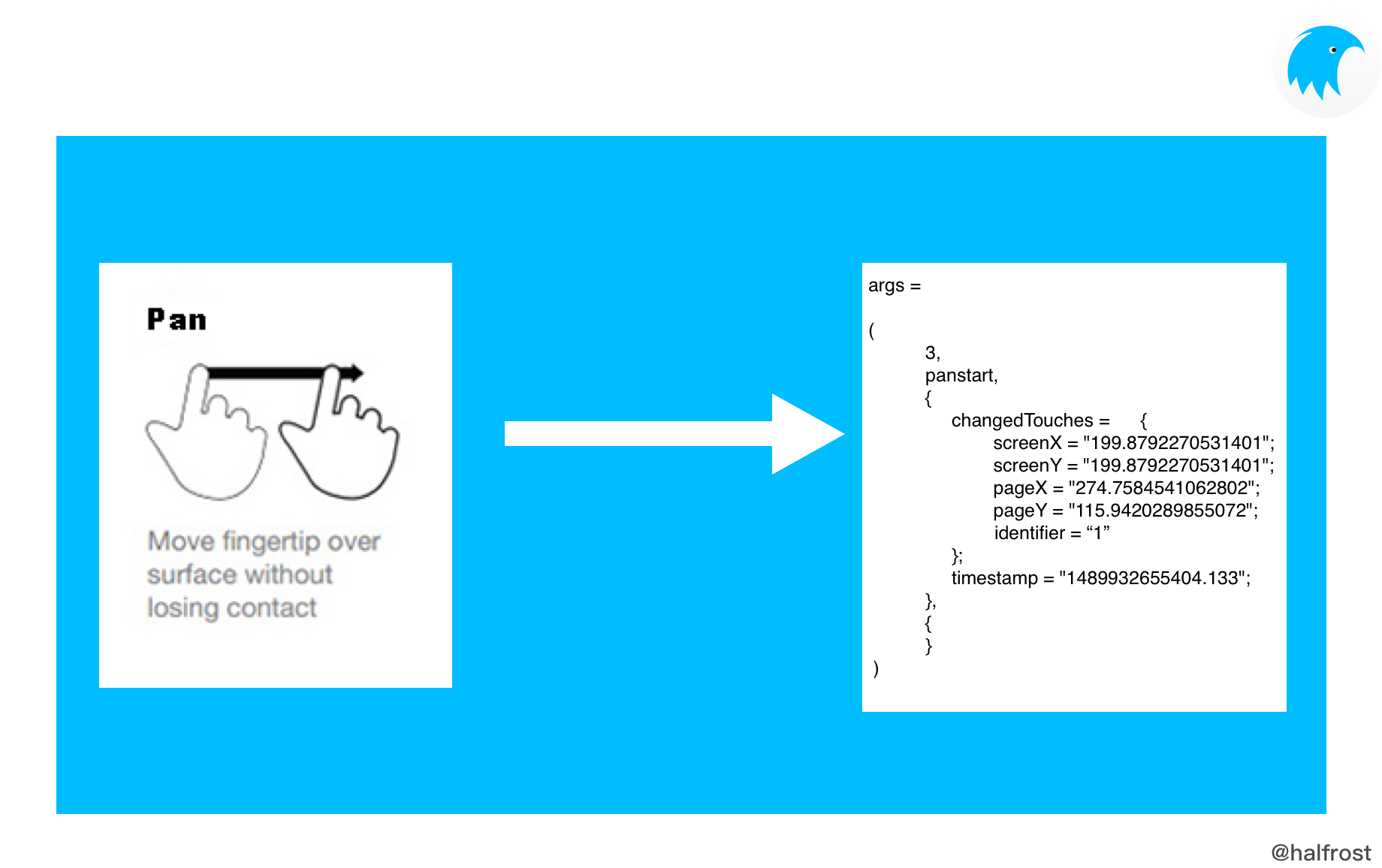
Determine the current state based on _listenPanStart, _listenPanEnd, and _listenPanMove, and generate the corresponding eventName and state strings.
Determine the current drag direction based on the directional vector formed by _panGesture dragging on the current view.
(5) Generic Touch Events
Finally, there are the generic touch events.
In Weex, a gesture recognizer is newly created for each Component.
@interface WXTouchGestureRecognizer : UIGestureRecognizer

@property (nonatomic, assign) BOOL listenTouchStart;
@property (nonatomic, assign) BOOL listenTouchMove;
@property (nonatomic, assign) BOOL listenTouchEnd;
@property (nonatomic, assign) BOOL listenTouchCancel;
@property (nonatomic, assign) BOOL listenPseudoTouch;
{
    __weak WXComponent *_component;
    NSUInteger _touchIdentifier;
}

- (instancetype)initWithComponent:(WXComponent *)component NS_DESIGNATED_INITIALIZER;

@end
WXTouchGestureRecognizer inherits from UIGestureRecognizer. It contains only five BOOLs, representing five states respectively.
WXTouchGestureRecognizer weakly references the current WXComponent, and still has touchIdentifier.
Weex registers touch event methods through the following four macros.
    WX_ADD_EVENT(touchstart, addTouchStartEvent)
    WX_ADD_EVENT(touchmove, addTouchMoveEvent)
    WX_ADD_EVENT(touchend, addTouchEndEvent)
    WX_ADD_EVENT(touchcancel, addTouchCancelEvent)
The four events added by the macros above are essentially events that change each state, and each is associated with a corresponding BOOL variable.
- (void)addTouchStartEvent
{
    self.touchGesture.listenTouchStart = YES;
}

- (void)addTouchMoveEvent
{
    self.touchGesture.listenTouchMove = YES;
}

- (void)addTouchEndEvent
{
    self.touchGesture.listenTouchEnd = YES;
}

- (void)addTouchCancelEvent
{
    self.touchGesture.listenTouchCancel = YES;
}
When the user begins touching the screen, moves on the screen, ends the touch by lifting their finger, or cancels the touch, the touchesBegan:, touchesMoved:, touchesEnded:, and touchesCancelled: methods are triggered respectively.
- (void)touchesBegan:(NSSet<UITouch *> *)touches withEvent:(UIEvent *)event
{
    [super touchesBegan:touches withEvent:event];

    if (_listenTouchStart) {
        [self fireTouchEvent:@"touchstart" withTouches:touches];
    }
    if(_listenPseudoTouch) {
        NSMutableDictionary *styles = [_component getPseudoClassStyles:@"active"];
        [_component updatePseudoClassStyles:styles];
    }

}

- (void)touchesMoved:(NSSet<UITouch *> *)touches withEvent:(UIEvent *)event
{
    [super touchesMoved:touches withEvent:event];

    if (_listenTouchMove) {
        [self fireTouchEvent:@"touchmove" withTouches:touches];
    }
}

- (void)touchesEnded:(NSSet<UITouch *> *)touches withEvent:(UIEvent *)event
{

    [super touchesEnded:touches withEvent:event];

    if (_listenTouchEnd) {
        [self fireTouchEvent:@"touchend" withTouches:touches];
    }
    if(_listenPseudoTouch) {
        [self recoveryPseudoStyles:_component.styles];
    }

}

- (void)touchesCancelled:(NSSet<UITouch *> *)touches withEvent:(UIEvent *)event
{
    [super touchesCancelled:touches withEvent:event];

    if (_listenTouchCancel) {
        [self fireTouchEvent:@"touchcancel" withTouches:touches];
    }
    if(_listenPseudoTouch) {
        [self recoveryPseudoStyles:_component.styles];
    }
}
In essence, all four events above call the fireTouchEvent:withTouches: method:
- (void)fireTouchEvent:(NSString *)eventName withTouches:(NSSet<UITouch *> *)touches
{
    NSMutableArray *resultTouches = [NSMutableArray new];

    for (UITouch *touch in touches) {
        CGPoint screenLocation = [touch locationInView:touch.window];
        CGPoint pageLocation = [touch locationInView:_component.weexInstance.rootView];
        if (!touch.wx_identifier) {
            touch.wx_identifier = @(_touchIdentifier++);
        }
        NSDictionary *resultTouch = [_component touchResultWithScreenLocation:screenLocation pageLocation:pageLocation identifier:touch.wx_identifier];
        [resultTouches addObject:resultTouch];
    }

    [_component fireEvent:eventName params:@{@"changedTouches":resultTouches ?: @[]}];
}
Ultimately, this method, like the first three gestures, needs to pass two Points and one wx_identifier to resultTouches. The principle is the same.
For how coordinates are passed to JS, see Chapter 2.
2. Appear Event
If a component located within a scrollable area is bound to the appear event, then when that component’s state changes to visible on the screen, the event will be triggered.
Therefore, all views bound to the Appear event are scrollable views.
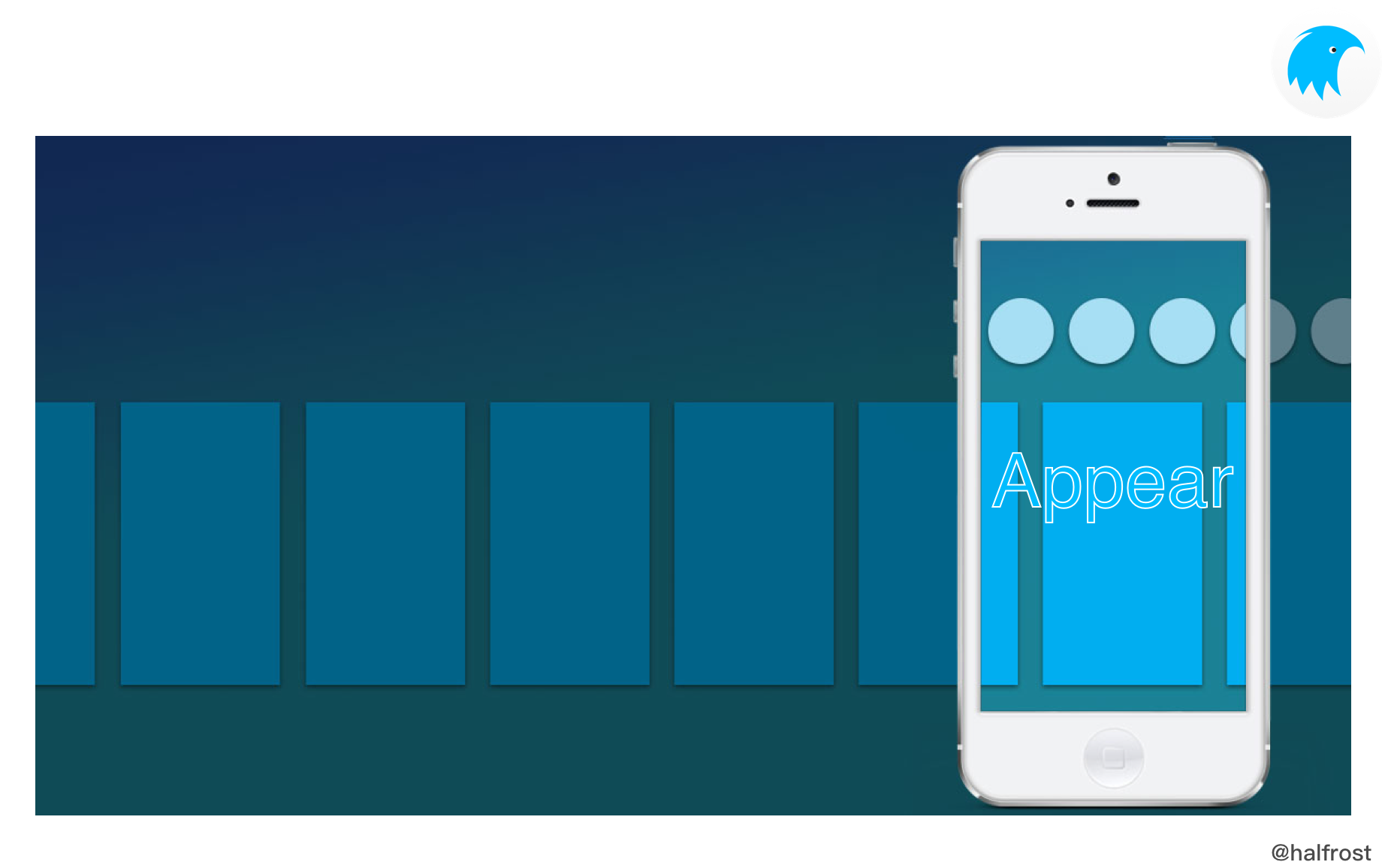
WX_ADD_EVENT(appear, addAppearEvent)
Use the macro above to add an Appear event to a scrollable view. That is, call the addAppearEvent method on the current view.
- (void)addAppearEvent
{
    _appearEvent = YES;
    [self.ancestorScroller addScrollToListener:self];
}
In Weex, each component has two BOOL values that record the current states of _appearEvent and _disappearEvent.
    BOOL _appearEvent;
    BOOL _disappearEvent;
When the corresponding event is added, the corresponding BOOL is set to YES.
- (id<WXScrollerProtocol>)ancestorScroller
{
    if(!_ancestorScroller) {
        WXComponent *supercomponent = self.supercomponent;
        while (supercomponent) {
            if([supercomponent conformsToProtocol:@protocol(WXScrollerProtocol)]) {
                _ancestorScroller = (id<WXScrollerProtocol>)supercomponent;
                break;
            }
            supercomponent = supercomponent.supercomponent;
        }
    }

    return _ancestorScroller;
}
Because both the Appear and Disappear events require a scroll view, this traverses the current view’s supercomponent chain until it finds a supercomponent that conforms to WXScrollerProtocol.
- (void)addScrollToListener:(WXComponent *)target
{
    BOOL has = NO;
    for (WXScrollToTarget *targetData in self.listenerArray) {
        if (targetData.target == target) {
            has = YES;
            break;
        }
    }
    if (!has) {
        WXScrollToTarget *scrollTarget = [[WXScrollToTarget alloc] init];
        scrollTarget.target = target;
        scrollTarget.hasAppear = NO;
        [self.listenerArray addObject:scrollTarget];
    }
}
The scroll view contains a listenerArray, which stores all the objects being listened to. When adding an object to this array, it first checks whether an identical WXScrollToTarget already exists to avoid duplicate additions. If no duplicate is found, it creates a new WXScrollToTarget and then adds it to listenerArray.
@interface WXScrollToTarget : NSObject
@property (nonatomic, weak)   WXComponent *target;
@property (nonatomic, assign) BOOL hasAppear;
@end
WXScrollToTarget is a regular object that holds a weak reference to the WXComponent currently being observed, along with a BOOL variable that records whether it has appeared.
When the scroll view scrolls, the scrollViewDidScroll: method is triggered.
- (void)scrollViewDidScroll:(UIScrollView *)scrollView
{
    //apply block which are registered
    WXSDKInstance *instance = self.weexInstance;
    if ([self.ref isEqualToString:WX_SDK_ROOT_REF] &&
        [self isKindOfClass:[WXScrollerComponent class]]) {
        if (instance.onScroll) {
            instance.onScroll(scrollView.contentOffset);
        }
    }

    if (_lastContentOffset.x > scrollView.contentOffset.x) {
        _direction = @"right";
    } else if (_lastContentOffset.x < scrollView.contentOffset.x) {
        _direction = @"left";
    } else if(_lastContentOffset.y > scrollView.contentOffset.y) {
        _direction = @"down";
    } else if(_lastContentOffset.y < scrollView.contentOffset.y) {
        _direction = @"up";
    }

    _lastContentOffset = scrollView.contentOffset;

    // check sticky
    [self adjustSticky];
    [self handleLoadMore];
    [self handleAppear];

    if (self.onScroll) {
        self.onScroll(scrollView);
    }
}
In the method above, [self handleAppear] triggers the check for whether Appear has occurred.
- (void)handleAppear
{
    if (![self isViewLoaded]) {
        return;
    }
    UIScrollView *scrollView = (UIScrollView *)self.view;
    CGFloat vx = scrollView.contentInset.left + scrollView.contentOffset.x;
    CGFloat vy = scrollView.contentInset.top + scrollView.contentOffset.y;
    CGFloat vw = scrollView.frame.size.width - scrollView.contentInset.left - scrollView.contentInset.right;
    CGFloat vh = scrollView.frame.size.height - scrollView.contentInset.top - scrollView.contentInset.bottom;
    CGRect scrollRect = CGRectMake(vx, vy, vw, vh);;

    // notify action for appear
    for(WXScrollToTarget *target in self.listenerArray){
        [self scrollToTarget:target scrollRect:scrollRect];
    }
}
The method above calls the scrollToTarget:scrollRect: method on each WXScrollToTarget object in the listenerArray array. It passes in a CGRect based on the current scroll state. This CGRect contains the coordinate information, width, and height of the rectangular region currently scrolled into view.
- (void)scrollToTarget:(WXScrollToTarget *)target scrollRect:(CGRect)rect
{
    WXComponent *component = target.target;
    if (![component isViewLoaded]) {
        return;
    }

    // Calculate the top coordinate of the current visible area
    CGFloat ctop;
    if (component && component->_view && component->_view.superview) {
        ctop = [component->_view.superview convertPoint:component->_view.frame.origin toView:_view].y;
    } else {
        ctop = 0.0;
    }
    // Calculate the bottom coordinate of the current visible area
    CGFloat cbottom = ctop + CGRectGetHeight(component.calculatedFrame);
    // Calculate the left coordinate of the current visible area
    CGFloat cleft;
    if (component && component->_view && component->_view.superview) {
        cleft = [component->_view.superview convertPoint:component->_view.frame.origin toView:_view].x;
    } else {
        cleft = 0.0;
    }
    // Calculate the right coordinate of the current visible area
    CGFloat cright = cleft + CGRectGetWidth(component.calculatedFrame);

    // Get the passed-in scroll area
    CGFloat vtop = CGRectGetMinY(rect), vbottom = CGRectGetMaxY(rect), vleft = CGRectGetMinX(rect), vright = CGRectGetMaxX(rect);

    // Check whether the current visible area is within the passed-in scroll area; if so, and the appear event is listened for, trigger the appear event; otherwise, if the disappear event is listened for, trigger the disappear event
    if(cbottom > vtop && ctop <= vbottom && cleft <= vright && cright > vleft){
        if(!target.hasAppear && component){
            target.hasAppear = YES;
            // If the appear event is currently listened for, trigger the appear event
            if (component->_appearEvent) {
                [component fireEvent:@"appear" params:_direction ? @{@"direction":_direction} : nil];
            }
        }
    } else {
        if(target.hasAppear && component){
            target.hasAppear = NO;
            // If the disappear event is currently listened for, trigger the disappear event
            if(component->_disappearEvent){
                [component fireEvent:@"disappear" params:_direction ? @{@"direction":_direction} : nil];
            }
        }
    }
}
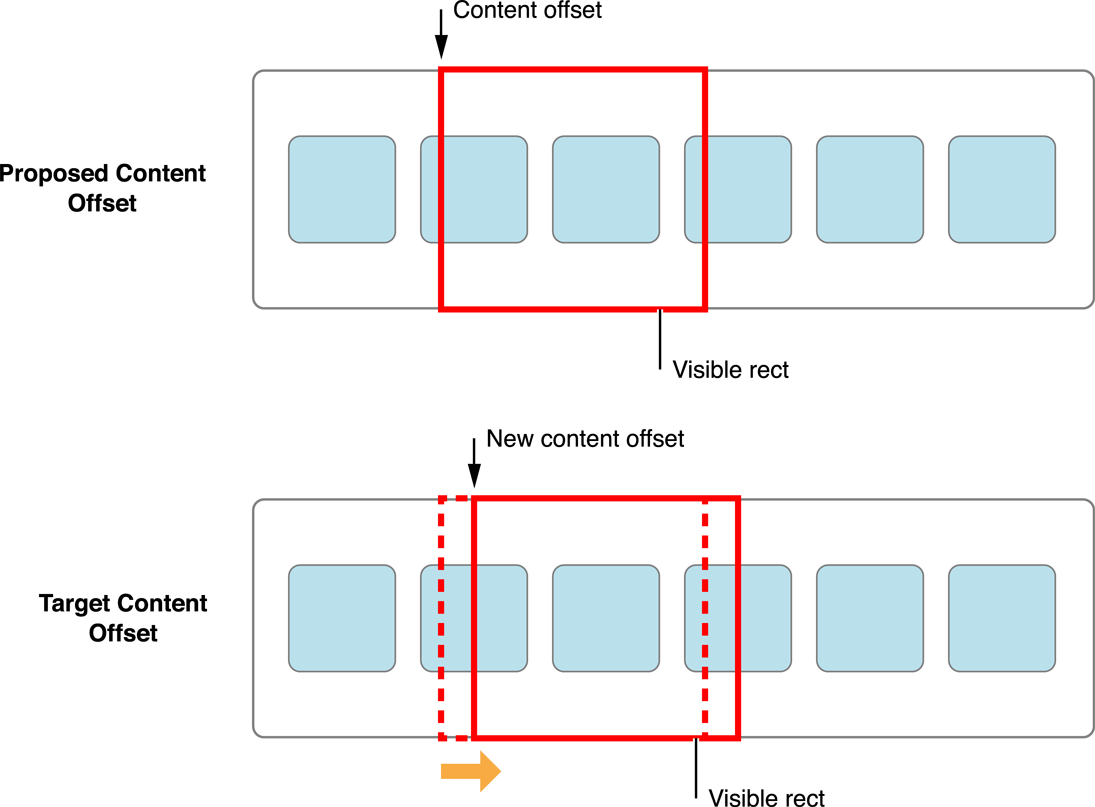
The core of the scrollToTarget:scrollRect: method is to compare the current visible area with the passed-in scroll area. If the component is within that area and the appear event is being listened for, the appear event will be triggered. If it is not within that area and the disappear event is being listened for, the disappear event will be triggered.
3. Disappear Event
If a component located within a scrollable area is bound to a disappear event, then when that component is scrolled off the screen and becomes invisible, this event will be triggered.
Similarly, views bound to the Disappear event are all scrollable views.
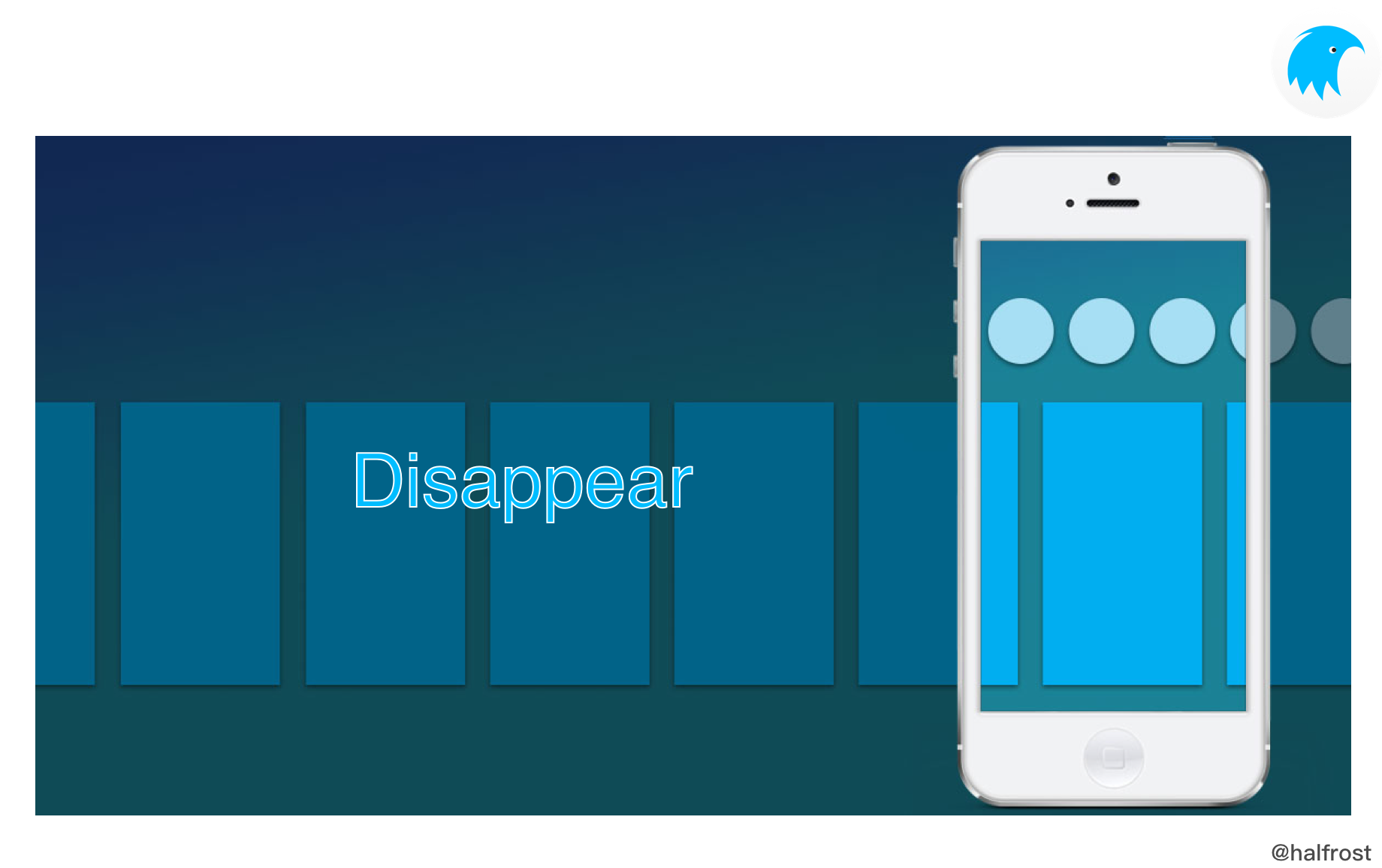
WX_ADD_EVENT(disappear, addDisappearEvent)
Use the macro above to add a Disappear event to a scrollable view. That is, call the addDisappearEvent method on the current view.
- (void)addDisappearEvent
{
    _disappearEvent = YES;
    [self.ancestorScroller addScrollToListener:self];
}
What follows works exactly the same way as the Appear event.
4. Page Events
For now, Weex only supports iOS and Android; H5 is not supported yet.
Weex provides basic page state management through the viewappear and viewdisappear events.
The viewappear event is triggered before the page is about to be displayed or before any configured page animation is executed. For example, when the push method of the navigator module is called, this event is triggered when the new page is opened. The viewdisappear event is triggered when the page is about to be closed.
Unlike the appear and disappear events of a Component, the viewappear and viewdisappear events are concerned with the state of the entire page, so they must be bound to the root element of the page.
In special cases, these two events can also be bound to a non-root body component, such as the wxc-navpage component.
For example:
- (void)_updateInstanceState:(WXState)state
{
    if (_instance && _instance.state != state) {
        _instance.state = state;

        if (state == WeexInstanceAppear) {
            [[WXSDKManager bridgeMgr] fireEvent:_instance.instanceId ref:WX_SDK_ROOT_REF type:@"viewappear" params:nil domChanges:nil];
        } else if (state == WeexInstanceDisappear) {
            [[WXSDKManager bridgeMgr] fireEvent:_instance.instanceId ref:WX_SDK_ROOT_REF type:@"viewdisappear" params:nil domChanges:nil];
        }
    }
}
For example, in WXBaseViewController, there is a method that updates the current Instance state. This method triggers the viewappear and viewdisappear events.
Here, WX_SDK_ROOT_REF is _root.
#define WX_SDK_ROOT_REF @"_root"
The above method for updating the state also appears in the WXEmbedComponent component.
- (void)_updateState:(WXState)state
{
    if (_renderFinished && _embedInstance && _embedInstance.state != state) {
        _embedInstance.state = state;

        if (state == WeexInstanceAppear) {
            [self setNavigationWithStyles:self.embedInstance.naviBarStyles];
            [[WXSDKManager bridgeMgr] fireEvent:self.embedInstance.instanceId ref:WX_SDK_ROOT_REF type:@"viewappear" params:nil domChanges:nil];
        }
        else if (state == WeexInstanceDisappear) {
            [[WXSDKManager bridgeMgr] fireEvent:self.embedInstance.instanceId ref:WX_SDK_ROOT_REF type:@"viewdisappear" params:nil domChanges:nil];
        }
    }
}
II. Event Delivery in Weex
In Weex, iOS Native currently has only two ways to deliver events to JS: one is via callbacks in Module modules, and the other is via custom notification events in Component components.
(1) callback
WXModuleProtocol defines two types of closures that can callback to JS.
/**
 * @abstract the module callback , result can be string or dictionary.
 * @discussion callback data to js, the id of callback function will be removed to save memory.
 */
typedef void (^WXModuleCallback)(id result);

/**
 * @abstract the module callback , result can be string or dictionary.
 * @discussion callback data to js, you can specify the keepAlive parameter to keep callback function id keepalive or not. If the keepAlive is true, it won't be removed until instance destroyed, so you can call it repetitious.
 */
typedef void (^WXModuleKeepAliveCallback)(id result, BOOL keepAlive);
Both closures can pass data back to JS via callback, and data can be either a string or a dictionary.
The difference between these two closures is:
WXModuleCallbackis used for Module components. To save memory, this callback can notify JS only once; after that, it will be released. It is mostly used for one-time results.WXModuleKeepAliveCallbackis also used for Module components, but this callback can be configured as a multi-callback type. IfkeepAliveis set, it can continuously listen for changes, invoke the callback multiple times, and return data to JS.
In Weex, WXModuleCallback is often used to callback status to JS, such as success or failure states, as well as some error information.
For example, in WXStorageModule
- (void)setItem:(NSString *)key value:(NSString *)value callback:(WXModuleCallback)callback
{
    if ([self checkInput:key]) {
        callback(@{@"result":@"failed",@"data":@"key must a string or number!"});
        return;
    }
    if ([self checkInput:value]) {
        callback(@{@"result":@"failed",@"data":@"value must a string or number!"});
        return;
    }

    if ([key isKindOfClass:[NSNumber class]]) {
        key = [((NSNumber *)key) stringValue];
    }

    if ([value isKindOfClass:[NSNumber class]]) {
        value = [((NSNumber *)value) stringValue];
    }

    if ([WXUtility isBlankString:key]) {
        callback(@{@"result":@"failed",@"data":@"invalid_param"});
        return ;
    }
    [self setObject:value forKey:key persistent:NO callback:callback];
}
Inside the call to the setItem:value:callback: method, if setting the key-value pair fails, the error information is returned to JS through the WXModuleCallback callback.
Of course, if you call certain information query methods of the storage module WXStorageModule:
- (void)length:(WXModuleCallback)callback
{
    callback(@{@"result":@"success",@"data":@([[WXStorageModule memory] count])});
}

- (void)getAllKeys:(WXModuleCallback)callback
{
    callback(@{@"result":@"success",@"data":[WXStorageModule memory].allKeys});
}
When the length: and getAllKeys: method calls succeed, the success status and data are passed back to JS through the WXModuleCallback callback.
In Weex, there are only the following four modules that use WXModuleKeepAliveCallback:
WXDomModule, WXStreamModule, WXWebSocketModule, WXGlobalEventModule
In the WXDomModule module, when JS calls into native code to obtain the position, width, and height information of a Component, those coordinates and dimensions need to be passed back to JS. Although WXModuleKeepAliveCallback is used here, keepAlive is false, so the multi-callback capability is not actually used.
In the WXStreamModule module, because this is a stream transmission module, WXModuleKeepAliveCallback is definitely required. It needs to continuously listen for data changes and report progress back to JS; keepAlive is used here. WXModuleCallback is also used in the WXStreamModule module, and it immediately reports each status back to JS.
In the WXWebSocketModule module
@interface WXWebSocketModule()

@property(nonatomic,copy)WXModuleKeepAliveCallback errorCallBack;
@property(nonatomic,copy)WXModuleKeepAliveCallback messageCallBack;
@property(nonatomic,copy)WXModuleKeepAliveCallback openCallBack;
@property(nonatomic,copy)WXModuleKeepAliveCallback closeCallBack;

@end
Four WXModuleKeepAliveCallback callbacks are used. These four callbacks continuously send updates to JS for the error information, the data received by message, the connection-open state from open, and the connection-close state from close.
In the WXGlobalEventModule module, there is a fireGlobalEvent: method.
- (void)fireGlobalEvent:(NSNotification *)notification
{
    NSDictionary * userInfo = notification.userInfo;
    NSString * userWeexInstanceId = userInfo[@"weexInstance"];

    WXSDKInstance * userWeexInstance = [WXSDKManager instanceForID:userWeexInstanceId];
   // Prevent cases where userInstanceId exists but the instance has already been destroyed
    if (!userWeexInstanceId || userWeexInstance == weexInstance) {

        for (WXModuleKeepAliveCallback callback in _eventCallback[notification.name]) {
            callback(userInfo[@"param"], true);
        }
    }
}
Developers can use WXGlobalEventModule for global notifications, and include the weexInstance parameter in userInfo. Native does not need to care about userWeexInstanceId; this parameter is for JS.
Native developers only need to add an event listener in the module that uses WXGlobalEventModule, then send a global notification. userInfo[@“param”] will be passed back to JS.
(2) fireEvent:params:domChanges:

At the beginning, we introduced the four types of Weex events: common events, Appear events, Disappear events, and Page events. All of them use fireEvent:params:domChanges: in this way: after Native triggers an event, Native passes the parameters to JS.
WXComponent defines two methods that can send messages to JS:
/**
 * @abstract Fire an event to the component in Javascript.
 *
 * @param eventName The name of the event to fire
 * @param params The parameters to fire with
 **/
- (void)fireEvent:(NSString *)eventName params:(nullable NSDictionary *)params;

/**
 * @abstract Fire an event to the component and tell Javascript which value has been changed.
 * Used for two-way data binding.
 *
 * @param eventName The name of the event to fire
 * @param params The parameters to fire with
 * @param domChanges The values has been changed, used for two-way data binding.
 **/
- (void)fireEvent:(NSString *)eventName params:(nullable NSDictionary *)params domChanges:(nullable NSDictionary *)domChanges;
The difference between these two methods lies in the final domChanges parameter. The method with this parameter is mainly used for two-way data binding between Weex Native and JS.
- (void)fireEvent:(NSString *)eventName params:(NSDictionary *)params
{
    [self fireEvent:eventName params:params domChanges:nil];
}

- (void)fireEvent:(NSString *)eventName params:(NSDictionary *)params domChanges:(NSDictionary *)domChanges
{
    NSMutableDictionary *dict = [NSMutableDictionary dictionary];
    NSTimeInterval timeSp = [[NSDate date] timeIntervalSince1970] * 1000;
    [dict setObject:@(timeSp) forKey:@"timestamp"];
    if (params) {
        [dict addEntriesFromDictionary:params];
    }

    [[WXSDKManager bridgeMgr] fireEvent:self.weexInstance.instanceId ref:self.ref type:eventName params:dict domChanges:domChanges];
}
The above is the concrete implementation of the two methods. As you can see, the fireEvent:params: method simply calls the fireEvent:params:domChanges: method, passing nil for the final domChanges parameter.
In the fireEvent:params:domChanges: method, the params dictionary is processed once by adding a timestamp key-value pair. Ultimately, it still calls the fireEvent:ref:type:params:domChanges: method in WXBridgeManager.
WXBridgeManager provides the concrete implementations of the two methods described above.
- (void)fireEvent:(NSString *)instanceId ref:(NSString *)ref type:(NSString *)type params:(NSDictionary *)params
{
    [self fireEvent:instanceId ref:ref type:type params:params domChanges:nil];
}

- (void)fireEvent:(NSString *)instanceId ref:(NSString *)ref type:(NSString *)type params:(NSDictionary *)params domChanges:(NSDictionary *)domChanges
{
    if (!type || !ref) {
        WXLogError(@"Event type and component ref should not be nil");
        return;
    }

    NSArray *args = @[ref, type, params?:@{}, domChanges?:@{}];
    WXSDKInstance *instance = [WXSDKManager instanceForID:instanceId];

    WXCallJSMethod *method = [[WXCallJSMethod alloc] initWithModuleName:nil methodName:@"fireEvent" arguments:args instance:instance];
    [self callJsMethod:method];
}
The input parameters ref, type, params, and domChanges are encapsulated into the final args parameter array. Ultimately, a WXCallJSMethod method is constructed, and WXBridgeManager’s callJsMethod invokes the JS fireEvent method.

Here is an example:
Suppose there is a scenario where a user taps an image, which changes a piece of text on a label.
First, the image is an imageComponent. When the user taps it, the Component’s onclick: method is triggered.
Inside the component, the fireEvent:params: method is called:
[self fireEvent:@"click" params:@{@"position":position}];
Finally, via the fireEvent:params:domChanges: method, the parameter dictionary sent to JS is roughly as follows:
args:(
    0,
        (
                {
            args =             (
                3,
                click,
                                {
                    position =                     {
                        height = "199.8792270531401";
                        width = "199.8792270531401";
                        x = "274.7584541062802";
                        y = "115.9420289855072";
                    };
                    timestamp = "1489932655404.133";
                },
                                {
                }
            );
            method = fireEvent;
            module = "";
        }
    )
)
After JSFramework receives the fireEvent method call and finishes processing it, it determines that label needs to be updated, so it starts calling Native again and invokes a Native method. When calling Native’s callNative method, the parameters sent are as follows:
(
        {
        args =         (
            4,
                        {
                value = "\U56fe\U7247\U88ab\U70b9\U51fb";
            }
        );
        method = updateAttrs;
        module = dom;
    }
)
Eventually, the DOM’s updateAttrs method is invoked, which updates the value for the node with id 4. The node with id 4 corresponds to the label, so updating its value refreshes the label.
Next, JSFramework continues to call Native’s callNative method, with the following parameters sent over:
(
        {
        args =         (
        );
        method = updateFinish;
        module = dom;
    }
)
Call the DOM’s updateFinish method, indicating that the page refresh has completed.
Finally
At this point, the source-code analysis of the entire Weex flow—from View creation, to rendering, to generating event callbacks into JSFramework—is complete.
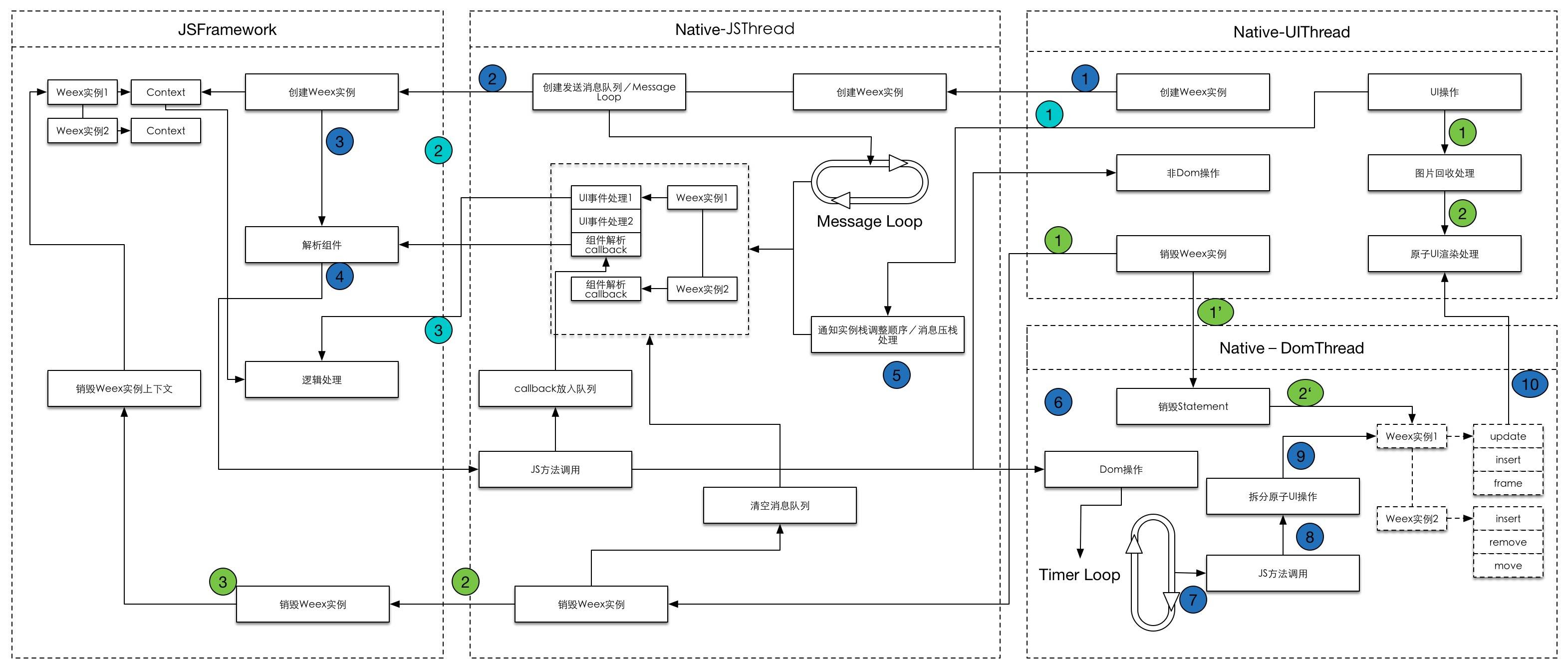
This process involves three threads: mainThread, com.taobao.weex.component, and com.taobao.weex.bridge, which correspond to the UI main thread, the DOM thread, and the JSBridge thread, respectively.
On the Native side, the only remaining piece is the source-code analysis of the mysterious JSFramework. Feedback and guidance are very welcome.